60-second summary
Quick answer
Open Book Editor and upload DOC/DOCX for an editable import or PDF as a finished file. The current limits are 15 MB for DOC/DOCX and 100 MB for PDF.
Before you start
What you need
- Choose a DOC or DOCX file no larger than 15 MB when you need editable text, or a finished PDF no larger than 100 MB when its existing layout must be preserved.
- Keep the original manuscript available until you have checked the imported title, chapter breaks, images and headings.
Procedure
Complete the task step by step
- 01
Open Book Editor
The Books tab contains Upload Manuscript or Finished PDF.
Current app screenOpen full size: Automateed Book Editor upload screen for manuscripts and finished PDFs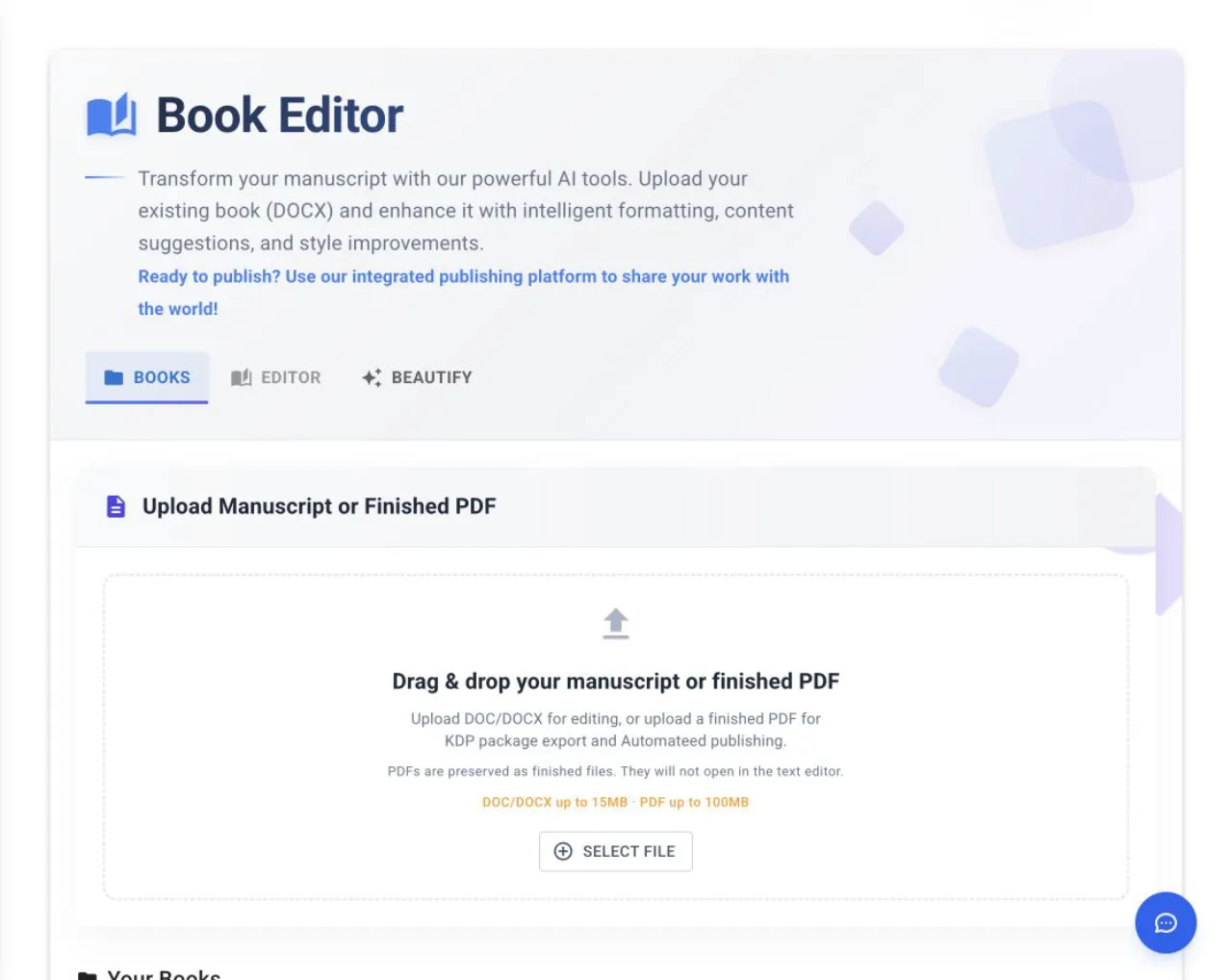
Use Select File, then choose the processing action that matches whether the source must remain editable. - 02
Click Select File
Choose DOC or DOCX for editing, or a finished PDF for publishing and KDP package export. DOC/DOCX can be up to 15 MB; PDF can be up to 100 MB.
- 03
Choose the processing action
Use Upload to Cloud. DOC/DOCX also offers Process Locally; that option is disabled for PDF.
- 04
Understand PDF behavior
A PDF is preserved as a finished file and does not open in the text editor.
- 05
Review an editable import
For DOC/DOCX, check title, chapter boundaries, images and heading levels after processing.
Success check
Confirm that it worked
- A DOC or DOCX import opens in Editor and, after it is saved, appears under Your Books.
- A PDF import is marked PDF Upload or Finished PDF and offers Open PDF, KDP Package and Publish on Automateed.
Important notes
- PDF files use Upload to Cloud. Process Locally is disabled because finished PDFs do not open in the text editor.
- Legacy DOC files are converted through text extraction, so DOCX is the safer choice when formatting matters.
- The local DOCX importer removes Caption, Figure Caption and Image Caption styles and strips figure-reference text; inspect important captions immediately after import.
Troubleshooting
If it still does not work
The file is rejected before processing
Use DOC, DOCX or PDF and stay within the displayed 15 MB DOC/DOCX or 100 MB PDF limit.
A PDF will not process locally
Choose Upload to Cloud; local PDF editing is not supported.
A legacy DOC loses its layout
Convert the source to DOCX in Word or another compatible editor, then import the DOCX copy.