60-second summary
Quick answer
Open a completed project in the native Preview & Download screen and choose a format supported for that book type. The app prepares PDF, EPUB or DOCX where available, then opens the operating-system share sheet for saving or opening it.
Before you start
What you need
- Open a completed project in the native Preview & Download screen while signed in.
- Know which export formats the project type supports before attempting the download.
Procedure
Complete the task step by step
- 01
Open a completed mobile project
Choose Preview & Download for the finished item before selecting a file type.
Current app screenOpen full size: Current mobile Preview and Download screen with PDF, EPUB and DOCX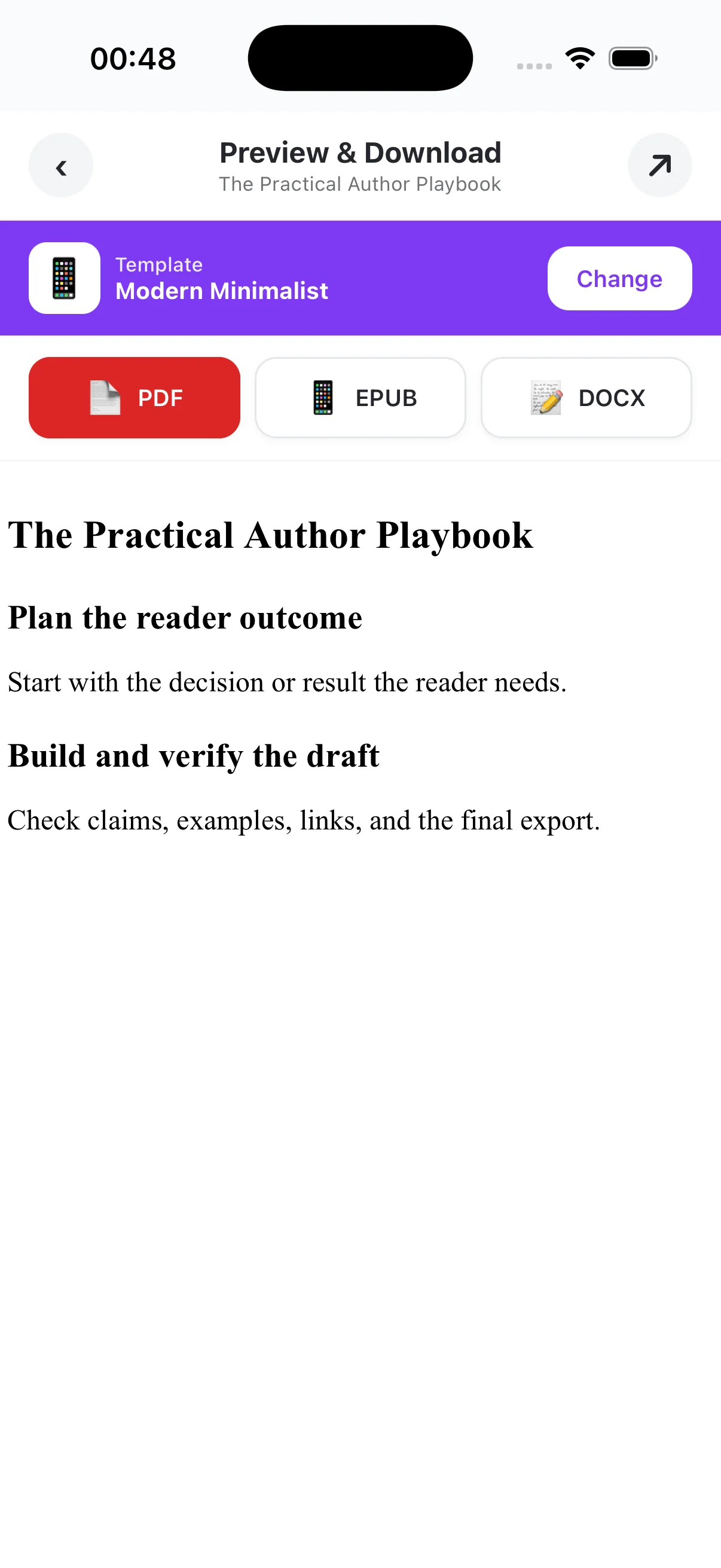
Open a completed project, choose Preview & Download and select only a format shown for that project type. - 02
Choose a supported format
Ebook, novel, course, Big Blog and uploaded book support PDF, EPUB and DOCX; cookbook, workbook and puzzle book support PDF and DOCX; journal, coloring book and storybook should use PDF on mobile. EPUB and standard DOCX export require paid access.
- 03
Use the system share sheet
After the file is prepared, save or open it from the operating-system share sheet in a compatible reader.
- 04
Do not rely on temporary cache
The native app holds a download temporarily until it is saved or shared to the chosen destination.
Success check
Confirm that it worked
- The operating-system share or save sheet opens for the chosen supported format.
- After saving or sharing, the downloaded file opens from the selected destination or a compatible reader application.
Important notes
- Ebooks, novels, courses, Big Blogs and uploaded books support PDF, EPUB and DOCX; cookbooks, workbooks and puzzle books support PDF and DOCX; journals, coloring books and storybooks should use PDF on mobile.
- EPUB and standard DOCX export require paid access. For a storybook DOCX, use the supported web export instead of the current mobile EPUB or DOCX controls.
- The native app downloads through temporary cache before the user saves or shares the file, and this screen does not expose Print, audiobook, KDP or publishing actions.
Troubleshooting
If it still does not work
An expected format button is not available
Check the project-type format mapping. For a storybook, use PDF on mobile and use the web app when a supported DOCX export is needed.
The download or preview fails while the project is still generating
Return after the project reaches a completed state. Refresh the existing Library item; use Retry only when that exact failed or stalled item offers it.