60-second summary
Quick answer
Confirm the account, open My Books, choose All, clear Search books… and pull to refresh. All includes recent dashboard books plus supported specialist types; use the web Library for an older Course or Big Blog that is not listed.
Before you start
What you need
- Sign in on mobile with the same Automateed account used to create the project.
- Know the project title, type and expected Completed, Generating, Pending, Failed or Draft status.
Procedure
Complete the task step by step
- 01
Confirm the account
Compare the signed-in email on both devices.
- 02
Refresh My Books
Pull to refresh or reopen My Books after generation completes.
Current app screenOpen full size: Current Automateed mobile My Books screen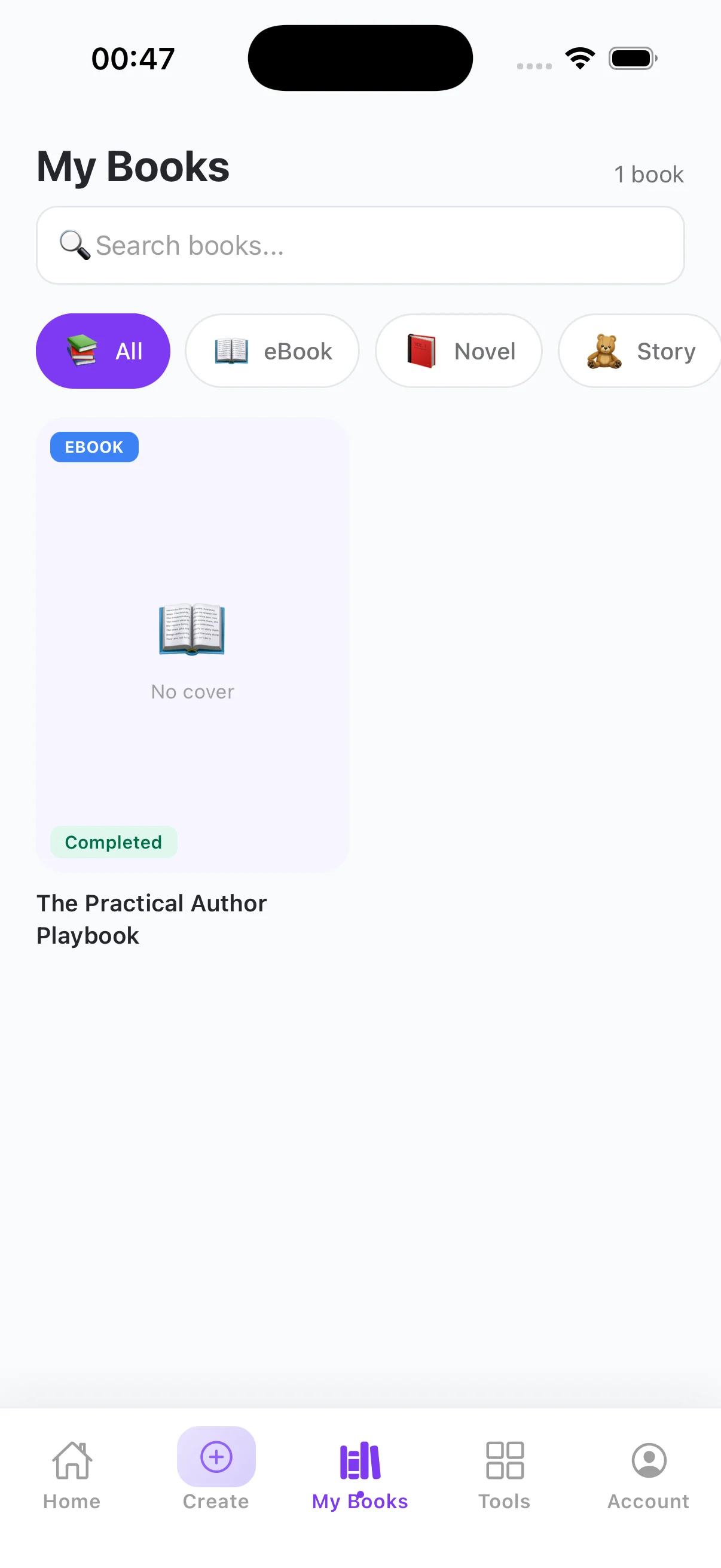
Use My Books, choose All and clear search or type filters before treating a project as missing. - 03
Clear hidden filters
Choose All, clear Search books… and then check the matching project-type filter.
- 04
Update the app
Install the latest version before reporting a sync issue.
Success check
Confirm that it worked
- Pull-to-refresh updates My Books with the latest project data.
- A recent supported project appears under All or, when available, its matching book-type filter with the current status.
Important notes
- The current native screen is named My Books rather than Library.
- All combines up to 60 recent dashboard books with supported specialist-book lists; older projects may need to be opened from the web Library.
- Course and Big Blog have no dedicated mobile filter. Use All for recent items and the web Library when an older project is not present.
Troubleshooting
If it still does not work
A web-created project is not visible on mobile
Choose All, clear or search its exact title, pull to refresh and reopen My Books before creating a duplicate.
The project appears with an older status
Pull to refresh from My Books or return to the screen after the generation state changes on the server.