60-second summary
Quick answer
Install the current iOS or Android app and use Sign In, Continue with Google or, on iOS, Continue with Apple for the same identity used on the web. A different identity opens a different Automateed account.
Before you start
What you need
- Install the current official Automateed iOS or Android build.
- Know the email/password or Apple or Google identity used by the existing Automateed account.
Procedure
Complete the task step by step
- 01
Install the official app
Use the current App Store or Play Store listing linked by Automateed.
- 02
Choose the same sign-in method
Use Sign In, Continue with Google or, on iOS, Continue with Apple for the identity connected to your existing account.
Current app screenOpen full size: Current Automateed mobile sign-in screen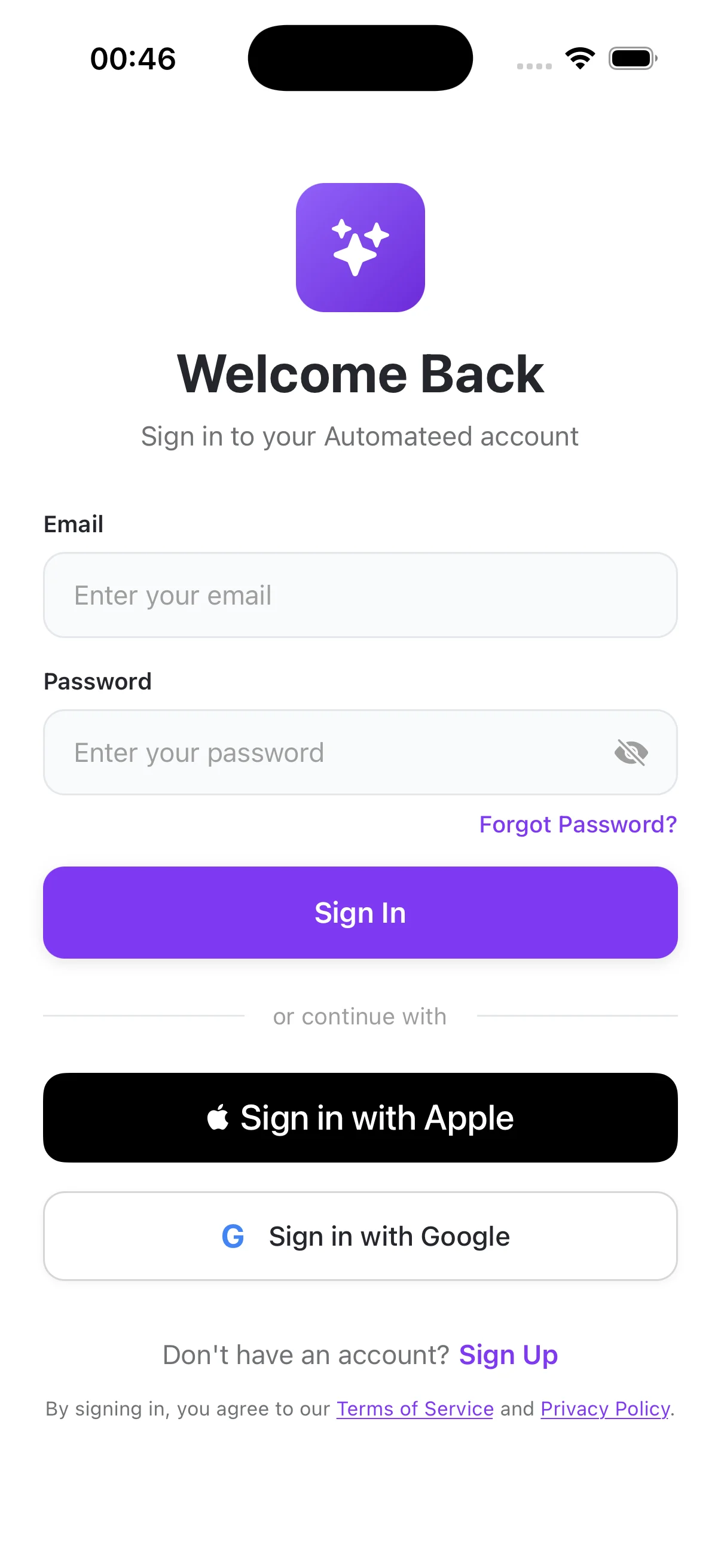
Use the same account identity as the web app. Email/password, Apple and Google options are visible on the current iOS screen. - 03
Confirm the account email
A different authentication email can create a separate library.
- 04
Open My Books
The current native screen is named My Books; recent supported book projects from the same account appear after sync.
Success check
Confirm that it worked
- The sign-in flow opens Home for the intended account without returning to the Welcome Back screen.
- Home shows Your Generations and provides access to My Books for that account.
Important notes
- Continue with Apple is shown only on iOS.
- Using a different email or federated identity can open a different Automateed account even on the same device.
Troubleshooting
If it still does not work
Sign-in succeeds but the expected books are absent
Verify the signed-in account email and authentication method before assuming that synchronization failed.
The email/password sign-in cannot be completed
Use Forgot Password? for the same email address; do not switch to Apple or Google unless that provider owns the intended account.