60-second summary
Quick answer
Open an eligible completed book, enable paperback selling, set the print retail price and submit the request. Automateed prepares and validates the print files before paperback ordering becomes available.
Before you start
What you need
- Have a completed, eligible book with its publishing details ready.
- Choose a paperback retail price in USD that is separate from the ebook price; the detail-page paperback panel requires a published book on an eligible non-free account.
Procedure
Complete the task step by step
- 01
Open the completed book
Use Library and choose the correct detail page.
Current app screenOpen full size: Automateed Paperback price and earnings setup panel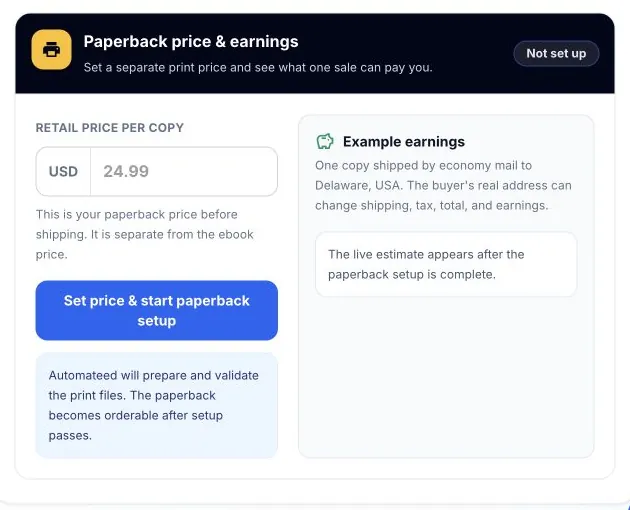
Enter the retail price and use Set price & start paperback setup. Automateed prepares and validates the production files before ordering is enabled. - 02
Enable paperback selling
Use Publish Your Book and select "Offer a paperback version," or start setup from Paperback price & earnings on the detail page.
- 03
Set the print retail price
The paperback price is separate from the ebook price. Enter the amount you want buyers to see before shipping.
- 04
Let Automateed prepare the files
The platform creates and validates the supported print interior and cover automatically; there is no technical package form to complete.
- 05
Monitor the status
The detail-page panel shows Not set up, Preparing or Live. Buyers can order after setup is live.
Success check
Confirm that it worked
- The paperback status changes from Not set up to Preparing after one valid setup request.
- When preparation and validation finish, the paperback status changes to Live.
Important notes
- Paperback setup can be requested while publishing with Offer a paperback version or later from an eligible published book.
- Shipping, tax, buyer total and estimated earnings can change with the buyer destination.
Troubleshooting
If it still does not work
The Paperback price & earnings panel is missing
Confirm that the book is published and that the account and book are eligible for paperback setup; otherwise use the paperback option in the publishing flow or Publisher Sites print settings when available.
Paperback setup remains in Preparing
Do not submit a duplicate request while Automateed is generating or validating the interior and cover; return later and check the existing status.