60-second summary
Quick answer
Open Top Up Tokens, choose ebook, task or image credits, select a quantity and complete checkout once. Eligible paid, lifetime and AppSumo accounts receive the purchased balance after payment.
Before you start
What you need
- Use an eligible paid, lifetime or AppSumo account in the web app; free accounts and the iOS native top-up route do not enter this checkout.
- Choose the exact eBook, Task or AI Image credit quantity required before adding it to the cart.
Procedure
Complete the task step by step
- 01
Open Top Up Tokens
Use the dedicated top-up page rather than a creative-tool screen.
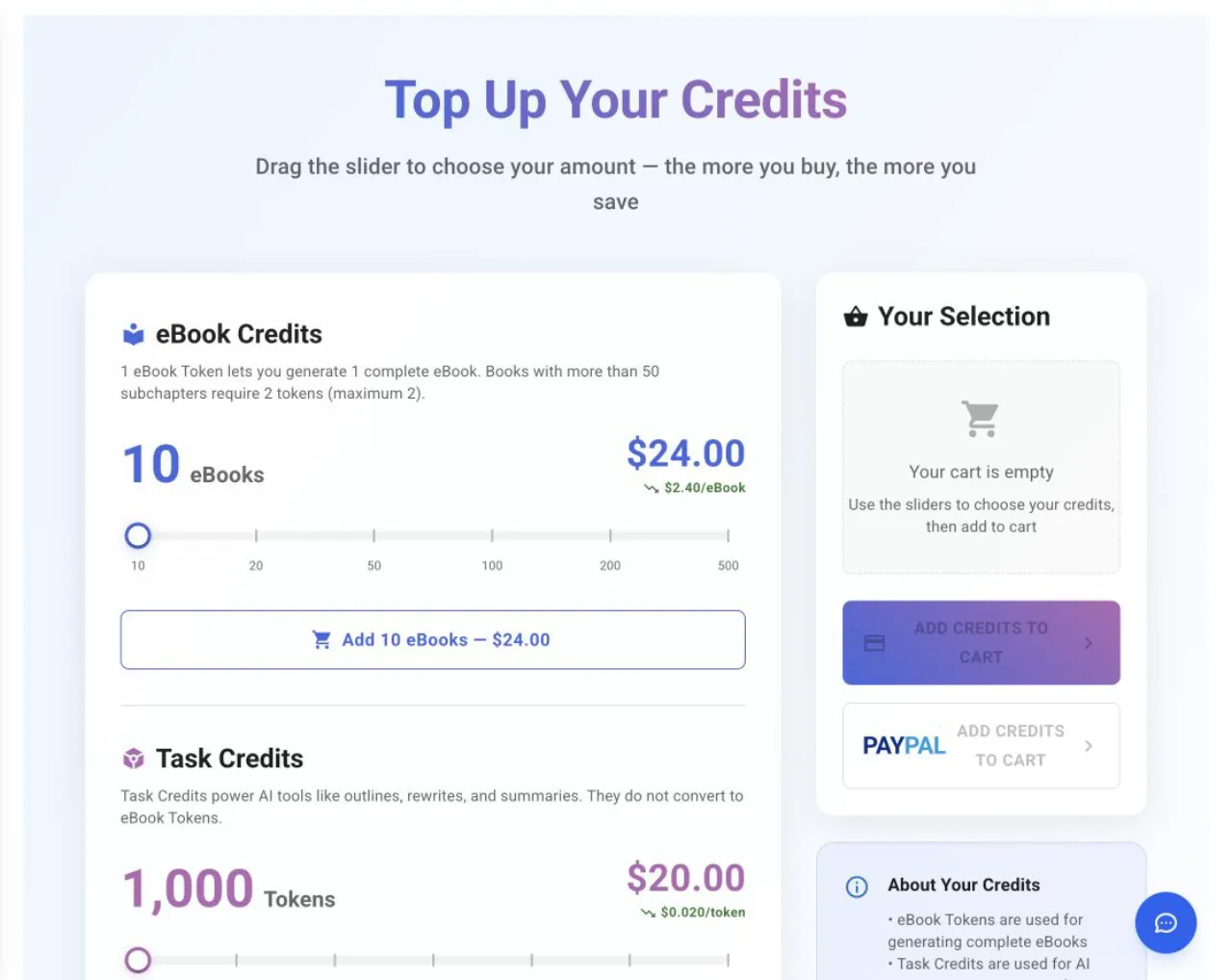
The page shows the chosen credit type, quantity and price before checkout. - 02
Choose the correct credit type
Confirm whether the package applies to books, images or another task.
- 03
Complete checkout once
Wait for the confirmation and do not create duplicate payment attempts.
- 04
Refresh the account balance
Check Subscription Info after the payment completes.
- 05
Contact support with the provider reference
Include the account email, provider, amount, purchase time, selected credit quantities and the Stripe session or PayPal order reference.
Success check
Confirm that it worked
- The Stripe or PayPal success flow finishes and the selected credit balance increases.
- Credit history records the top-up and shows the resulting balance after the transaction.
Important notes
- eBook, Task and AI Image credits are separate balances and cannot be exchanged with one another.
- On Top Up Your Credits, let one checkout finish before starting another.
Troubleshooting
If it still does not work
Payment succeeded but the selected balance did not change
Do not purchase the top-up again; preserve the provider order or session reference and follow the missing-credits procedure for the same account.
The top-up page redirects away
Confirm that the account is eligible for web top-ups and that the task is being performed in the web app rather than the iOS native flow.