60-second summary
Quick answer
Subscription Info separates ebook, task and image credits. Check the balance and the cost shown by the specific create form because plan allowances and large-generation costs can change.
Before you start
What you need
- Open Subscription Info for the account whose balances need to be checked.
- Know which planned action uses an eBook, Task or AI Image balance before starting it.
Procedure
Complete the task step by step
- 01
Open Subscription Info
Review the active plan and available balances.
Current app screenOpen full size: Automateed Subscription Info credit type cards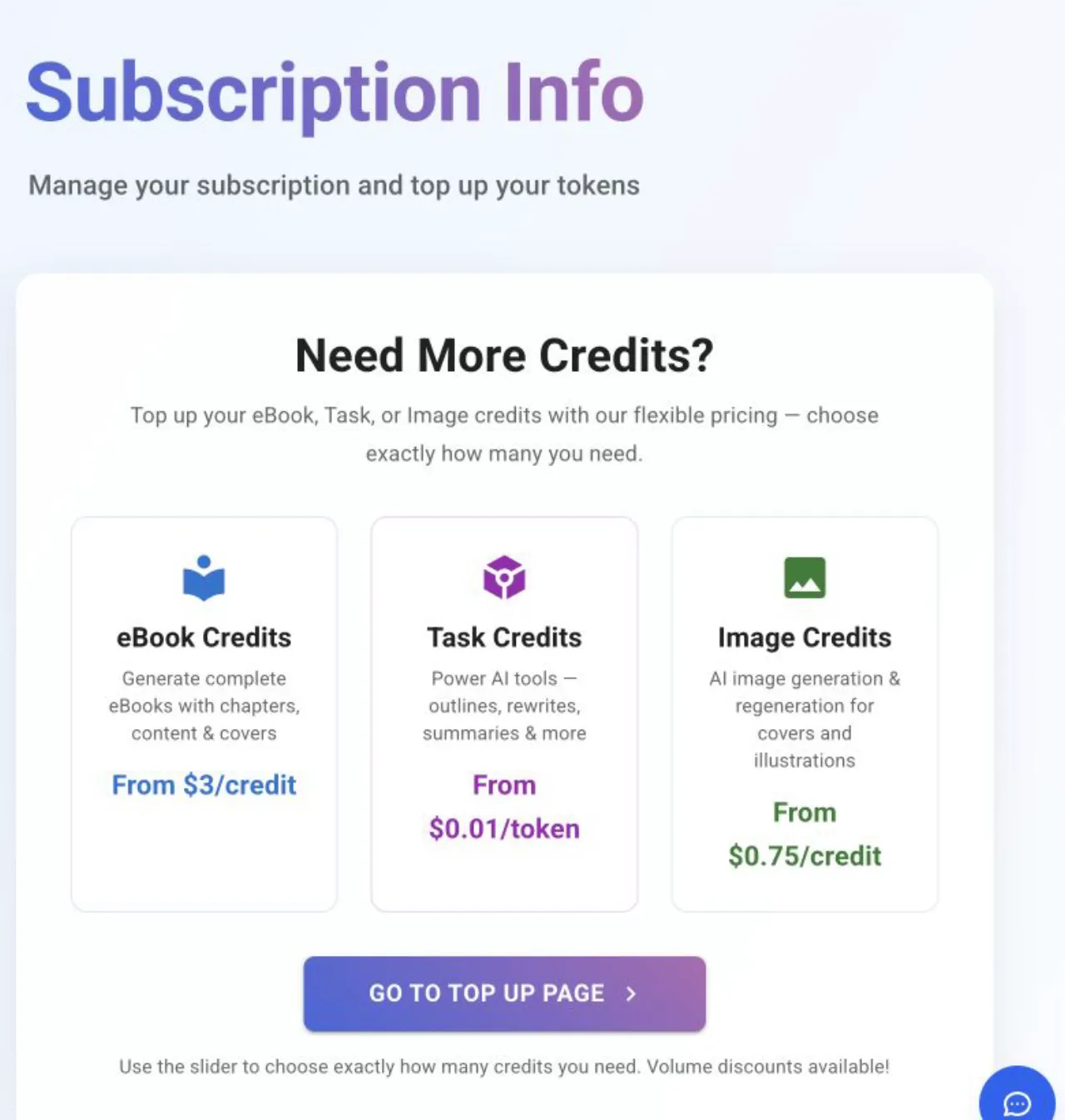
Ebook, task and image credits fund different actions and are topped up separately. - 02
Distinguish the displayed balances
Your Token Balance shows eBooks, Tasks and Images; it does not display a separate audio balance.
- 03
Check before a large job
Long and image-rich projects can require more capacity than a short preview.
- 04
Open Credit history
Use /token-history to inspect a transaction and resulting balance; Subscription Info does not contain payment history.
Success check
Confirm that it worked
- You can identify the separate eBooks, Tasks and Images values under Your Token Balance.
- Credit history at /token-history shows the relevant transaction and its Balance after value.
Important notes
- The current account screen does not display a separate audio-credit balance.
- Subscription Info does not contain payment history; credit activity is available on the separate Credit history screen.
Troubleshooting
If it still does not work
A displayed balance appears stale
Refresh the account data once and compare Your Token Balance with the corresponding entry and Balance after value in Credit history.
The expected credit type is not listed
Do not infer a new balance type; verify whether the action is charged from eBooks, Tasks or Images before purchasing additional credits.