60-second summary
Quick answer
Open Translate Book, choose a Library ebook or novel or upload DOC, DOCX or TXT up to 20 MB, select one of 87 target languages, review the token estimate and use Confirm & Start. Keep the page open until the job finishes.
Before you start
What you need
- Prepare a Library ebook or novel, or a DOC, DOCX or TXT file no larger than 20 MB.
- Check the estimated EBOOK-token cost and confirm that the account has enough balance.
- Choose the target language and decide whether headings, lists and the table of contents should be preserved.
Procedure
Complete the task step by step
- 01
Open Book Tools
Choose Translate Book from the dashboard tools.
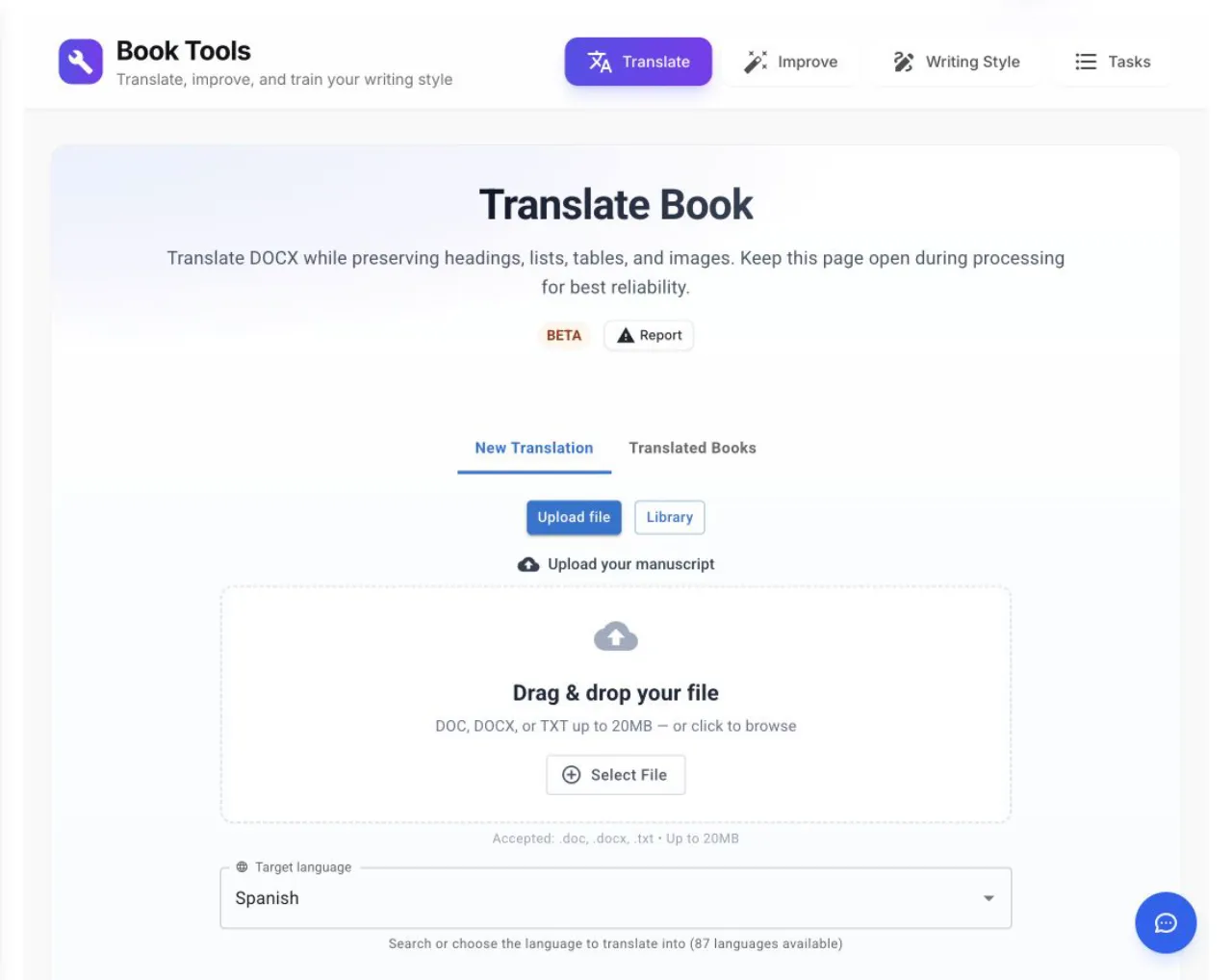
The current target-language selector contains 87 languages; Preserve formatting retains structure such as headings, lists and the table of contents. - 02
Choose the source
Select a Library ebook or novel, or upload a DOC, DOCX or TXT file no larger than 20 MB.
- 03
Choose the target language
Use Target language to choose from the current list of 87 languages.
- 04
Set structure handling
Enable Preserve formatting when headings, lists and the table of contents should be retained.
- 05
Confirm the job
Click Start Translation, review the token estimate in Confirm translation, then choose Confirm & Start. Keep the page open until translation finishes.
- 06
Review the new edition
Check headings, names, specialist terms, idioms and cover wording with a fluent reviewer.
Success check
Confirm that it worked
- The job reaches Translation ready and appears as completed under Translated Books.
- Download produces a translated DOCX while the original source project remains unchanged.
Important notes
- The Target language menu currently lists 87 languages.
- Preserve formatting covers headings, lists and the table of contents; it does not guarantee translation quality or identical pagination.
- After Start Translation, review the estimate in Confirm translation and click Confirm & Start.
- Keep the page open until the translation finishes, as the current interface warns.
Troubleshooting
If it still does not work
The upload is larger than 20 MB
Compress document images or split the book into separate files before trying again.
The confirmation dialog shows insufficient EBOOK tokens
Use Top Up Tokens or Upgrade Plan, then return to the pending translation.
The browser was closed during translation
Check Translated Books for an existing job before starting the same translation again.
Related guides
Go deeper