60-second summary
Quick answer
Do not buy again. Finish the existing Stripe or PayPal success flow, compare the intended eBook, Task or Image balance with Credit history, then send support the account, package, amount, time and provider order or session reference if still missing.
Before you start
What you need
- Confirm that Stripe or PayPal reports a completed payment for the intended Automateed account.
- Record the account email, provider, amount, exact time, selected credit types and quantities, and the provider order or session reference.
Procedure
Complete the task step by step
- 01
Confirm the Stripe or PayPal receipt
Make sure the payment is completed rather than pending or failed.
Current app screenOpen full size: Automateed Top Up Tokens checkout summary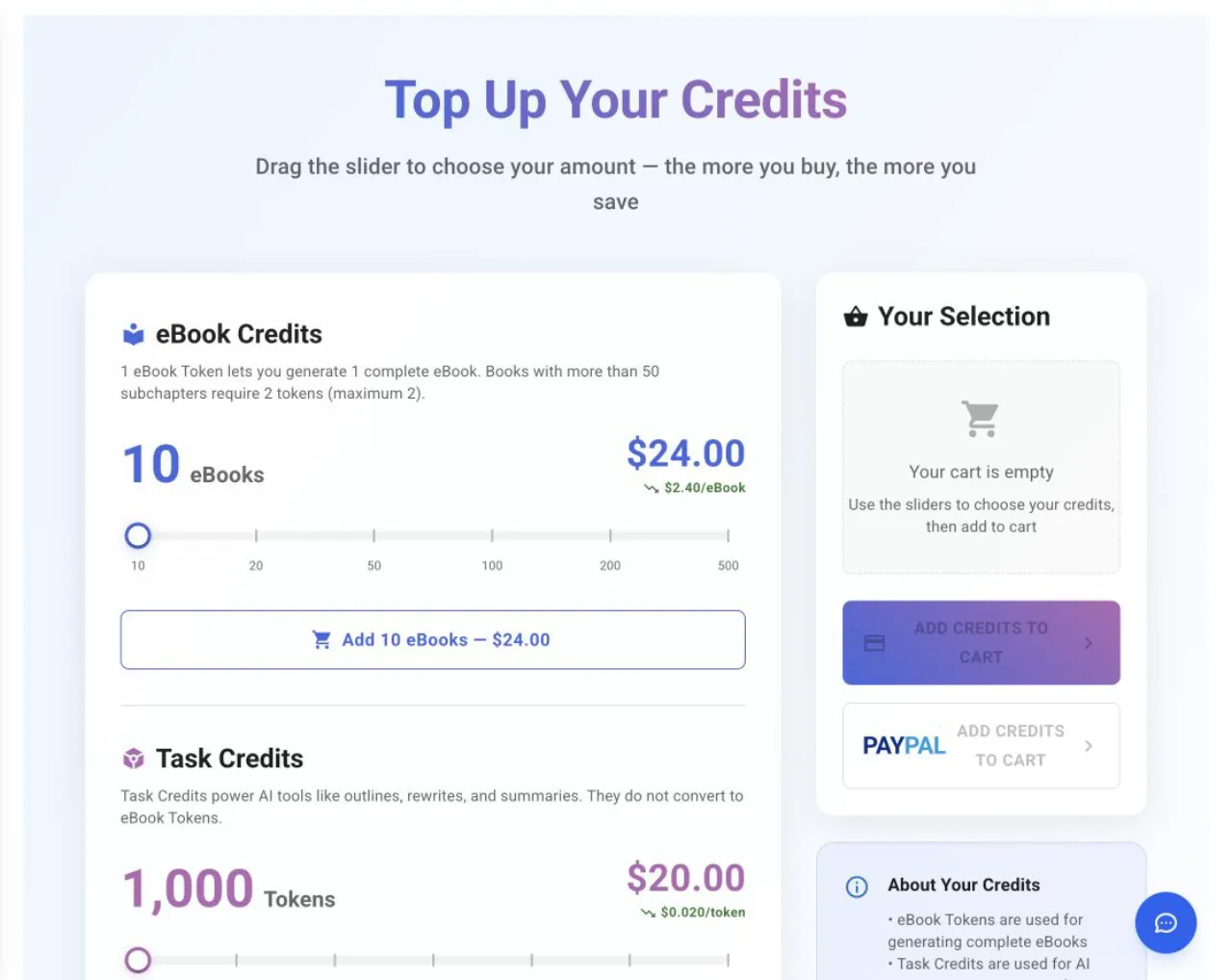
Record the selected credit type, quantity and price before checkout; those details identify the intended package if fulfillment fails. - 02
Check the purchased product
A book-credit package does not update an image-credit balance.
- 03
Finish the existing success flow
If the page still says Processing your payment…, let that Stripe or PayPal capture request finish and refresh once.
- 04
Check both records
Compare the relevant eBook, Task or Image balance with the resulting entry in Credit history at /token-history.
- 05
Contact support with evidence
Send the account email, provider, amount, purchase time, package quantities and provider order or session reference. Never send full card details.
Success check
Confirm that it worked
- The correct eBook, Task or AI Image balance increases by the purchased amount.
- Credit history contains the top-up transaction and shows the resulting Balance after value.
Important notes
- Do not purchase the same credits again and never send full card details to support.
- Processing time can vary; use the provider order or session reference if support must trace the payment.
Troubleshooting
If it still does not work
The success screen still says Processing your payment
Allow the existing success or capture flow to finish, then refresh the account once and compare the balance with Credit history.
The provider says paid but Automateed reports a processing error
Do not repeat checkout; send support the recorded account, purchase package, timestamp, amount and provider order or session reference.