Table of Contents
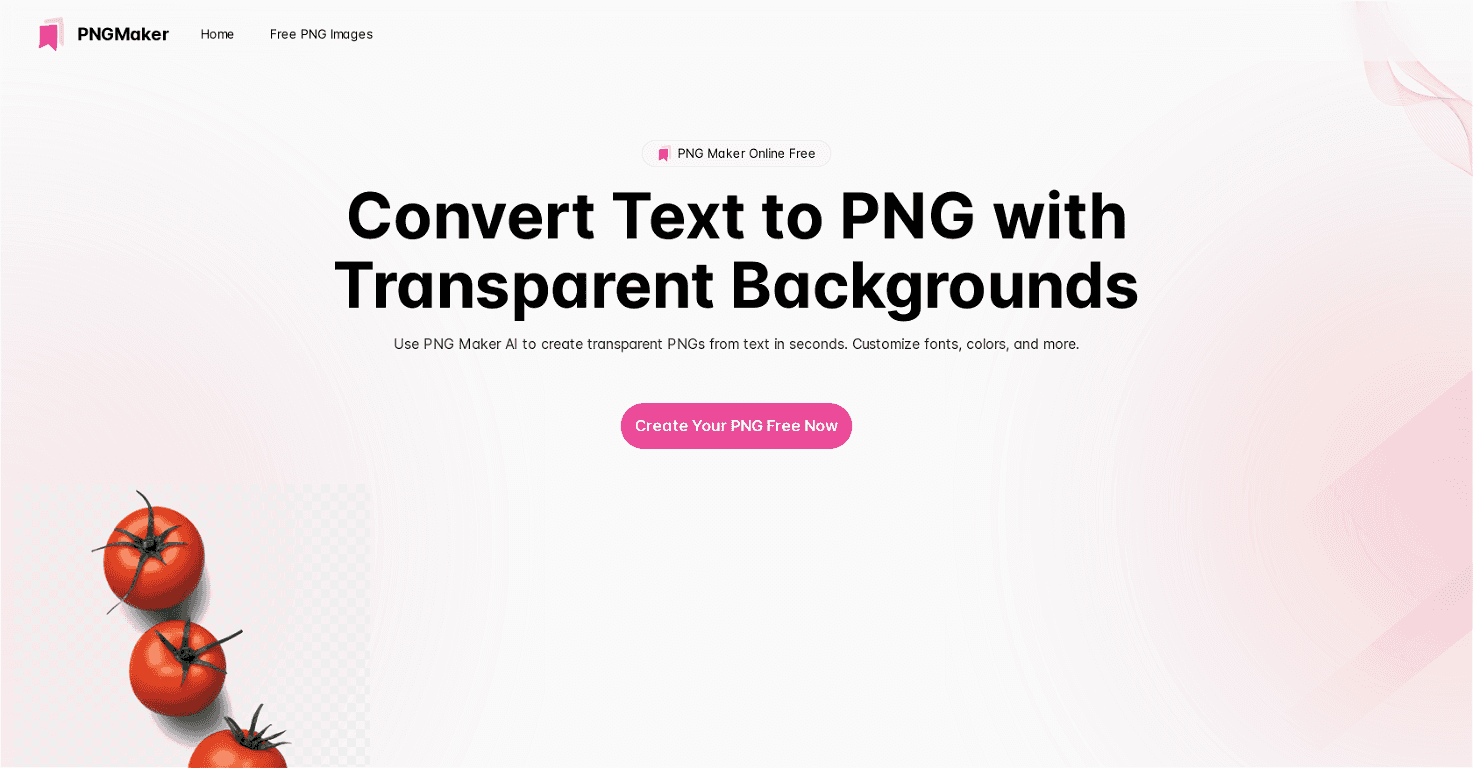
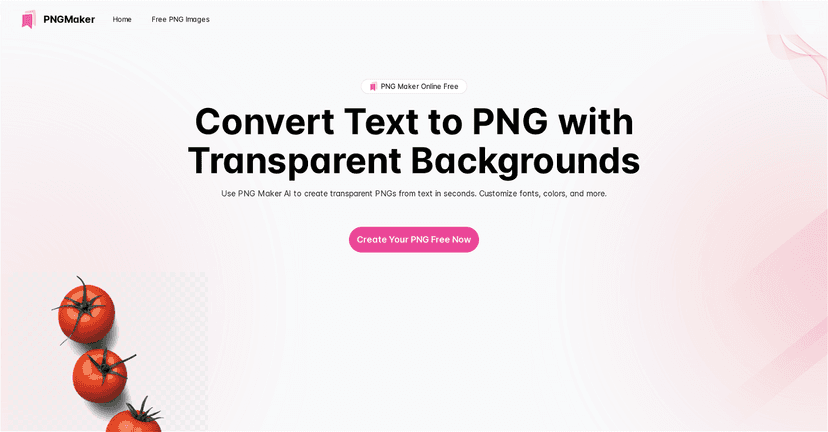
If you’ve ever tried to make a clean logo-style graphic from text and thought, “Why is this so annoying?”, you’re not alone. I tested PNG Maker specifically for turning custom text into PNG images, and it’s honestly pretty handy—especially when you need something transparent or quick for a design mockup.
PNG Maker Review: Can It Actually Turn Text Into Clean PNGs?
Here’s what I liked right away: it’s built for speed. I typed a short phrase, picked styling options, and generated a PNG without needing Photoshop or any real design background. That matters, because half the time the “easy” tools still feel fiddly.
In my experience, the biggest win is getting a result you can use immediately—like putting the PNG on a website banner, dropping it into a slide deck, or using it as a sticker-style element. And if you’ve ever tried to export text as an image with transparency the usual way, you know how much time that can eat.
Key Features I Tested (and What They’re Good For)
- AI-powered transformation for high-quality images
When I changed the text and styling, the generator produced a polished look quickly. It’s not just “plain text in an image”—it’s more like a styled graphic output. - Custom Text to PNG
This is the core feature. I tested a few different inputs (short words vs. longer lines) and noticed the tool works best when your text isn’t too cramped. If you feed it something like a long sentence, you may need to tweak formatting so it doesn’t feel squeezed. - Transparent PNG output
This is a big one. Transparent PNGs are perfect for overlaying text on backgrounds without the ugly white box problem. I found this especially useful for mockups where you want the text to sit naturally over an image. - Online free access for high-resolution generation
The free option is great for testing. I used it to validate whether the style matched what I had in mind before committing to anything.
Pros and Cons (Real Talk)
Pros
- Easy to use — The interface is straightforward. I didn’t have to hunt for controls or figure out a complicated workflow.
- Outputs look sharp — The generated PNGs are high-resolution enough for typical web and presentation use.
- Fast generation — If you’re iterating (changing wording, adjusting style), the speed saves a lot of time.
- Free tier helps you try before you buy — You can test the overall vibe without paying first.
Cons
- Some features may be locked behind paid plans — If you want more advanced styling or specific export options, you might hit limits.
- Results depend on your input — I noticed that certain text lengths and formatting choices produce better-looking outputs. Sometimes you’ll need to re-run with slightly different text or layout.
Pricing Plans: What to Expect
PNG Maker includes a Free Tier for basic usage, so you can generate high-resolution PNGs at no cost. If you want advanced features or plan to use outputs commercially, you’ll likely need to move to a premium plan. In other words: free is great for experimenting, but paid is where the “more control” stuff tends to show up.
If you’re deciding whether to upgrade, my practical suggestion is simple: generate 3–5 variations on the free tier using your real text. If the results are consistently close to what you want and you don’t feel limited, you may not need to pay. If you keep running into locked options, then it’s worth looking at the premium tier.
Wrap up
Overall, I’d call PNG Maker a solid option if you want text-to-PNG outputs that look styled and ready to use. It’s especially useful for quick graphics, transparent overlays, and anyone who doesn’t want to wrestle with design tools just to get a clean PNG. Try the free version first, see how it handles your specific text, and you’ll know pretty quickly whether it fits your workflow.