Table of Contents
If a book isn't showing on your Kindle, open Library, clear the Downloaded filter, connect to Wi-Fi and tap Sync. Also check that the Kindle uses the Amazon account that bought or borrowed the book. If it still doesn't appear, find it in Manage Your Content and Devices and try delivering it to that Kindle. These are the first checks in Amazon's missing-content instructions.
The next step depends on where you can find the title. Missing from your Amazon account? Check the order or loan. Present in the account but absent from the Kindle? Check filters and delivery. Visible but refusing to open? Focus on the download. We'll work through each situation so you don't have to try every fix on the page.
Older-Kindle exception: Amazon ended service support for Kindle e-readers released in 2012 or earlier on May 20, 2026. Affected devices cannot download new books through Amazon or register again after deregistration or a factory reset. If yours is that old, identify the model before attempting account changes. The cutoff and registration warning appear in an Amazon forum explanation acknowledged by Amazon staff.
Fast checklist when a Kindle book is not showing up
Try these steps in order on a supported Kindle. Once the book downloads and opens, you can stop:
- Open Library, not just the Home screen’s recent-book strip.
- Choose All where available, or deselect Downloaded; clear other active filters.
- Search for the title, then try the author separately.
- Turn Airplane mode off and confirm a working Wi-Fi connection.
- Run Sync or Sync and Check for Items.
- Compare the Kindle’s registered account with the account holding the book.
- Find the title in Manage Your Content and Devices and check delivery to this Kindle.
- Restart normally, reconnect, and sync again.
- Check the exact model’s software version if the preceding checks fail.
Amazon’s library-access guide explains the distinction between Home and Library and the same-account requirement. Menu placement varies, so use the labels present on your device rather than expecting every screen to match an older screenshot.
Make one change, then look for the book again. If clearing a filter reveals it, you've learned that the title was hidden rather than lost. Download it and see whether it opens before moving on to a restart or account changes. That saves time and avoids introducing another problem while fixing the first.
Did you buy it, borrow it or send a file?
First, think about how you got the book. A store purchase, library loan, free sample and manuscript you emailed to yourself don't all arrive or remain available in the same way. Use the table below to find the right place to check before assuming you'll need to buy it again.
| Item type | First place to check | Question to resolve |
|---|---|---|
| Purchased Kindle book | Amazon content management and Digital Orders | Is the Kindle edition in this account, and is the order complete? |
| Kindle Unlimited loan | Current borrowed titles and membership settings | Is this still a current loan rather than a returned selection? |
| Public-library ebook | The library’s loan record | Is the loan active, and was Kindle delivery completed? |
| Sample | Unfiltered Library or Samples | Are you looking for a sample rather than the purchased full book? |
| Personal document | Documents and the sending service’s result | Was it accepted into the intended account’s library? |
| Locally transferred file | The specific device that received the file | Did the complete, compatible file reach that device? |
Use the relevant special-case section below to interpret the result. For an apparent purchase missing from content management, Amazon specifically recommends checking Digital Orders for an incomplete payment and using the available payment-retry action. See its purchase-status troubleshooting. Check that record before placing another order.
Show cloud items and clear library filters
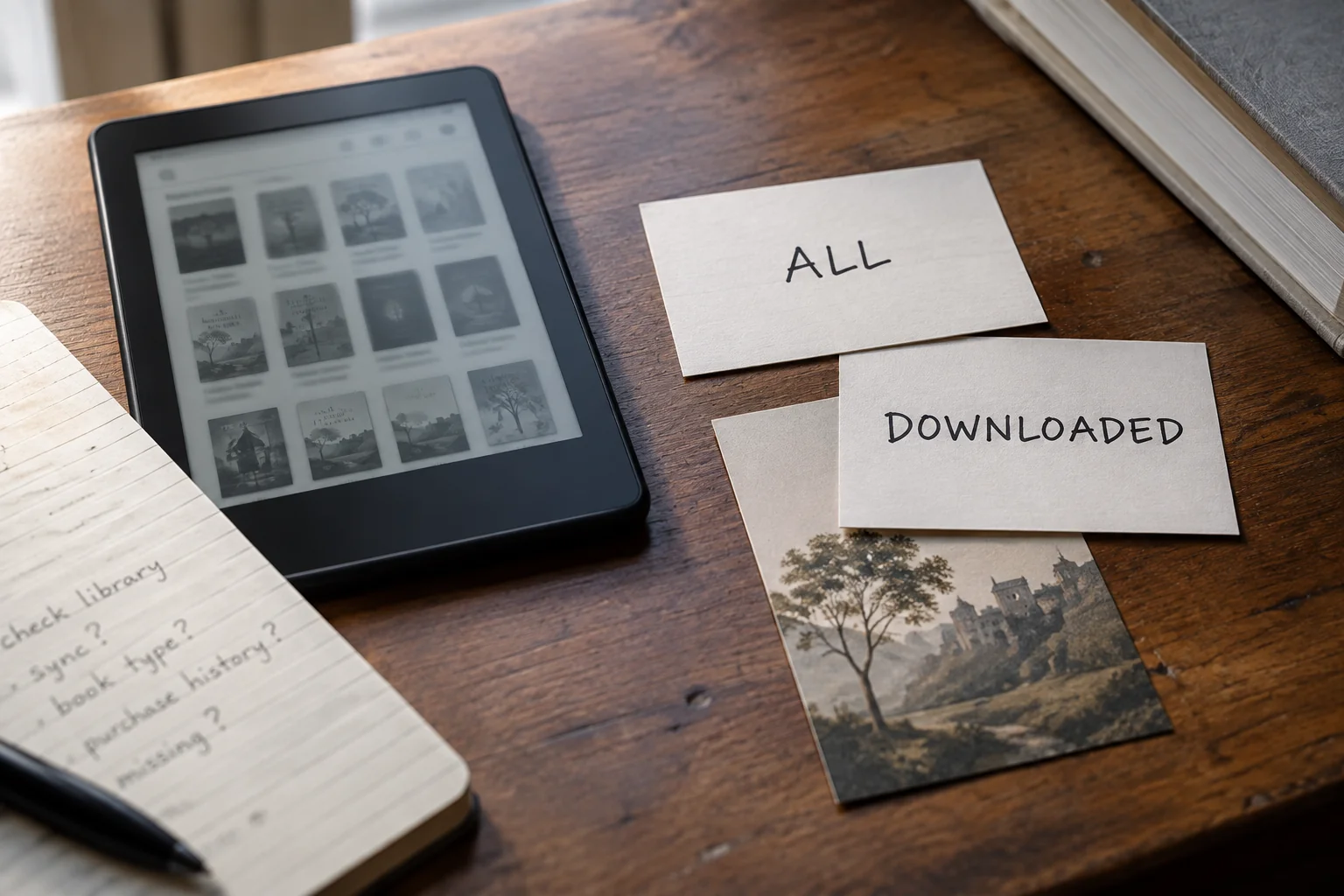
Remove the Downloaded restriction so you can see account content that is not stored on this Kindle yet. Some interfaces offer an All choice; others expose Downloaded inside the filter menu. Clear read-status and content-type filters too. Amazon’s Kindle Colorsoft user guide documents these controls, including Books, Samples, and Docs.
Search for the title and then the author's name rather than relying on the cover image. Try an older title or alternate spelling if you remember one. Leave any collection you've opened and check a grouped series too. You're looking across the whole library, not just the handful of books the current view happens to show.
When you find it, tap the title while connected to the internet. Does the download begin, do you get an error or does nothing happen? Keep any error wording. A book that appears but won't download needs a different fix from one that never appears in the library at all.
Confirm the Amazon account and registration
Compare the registered account in Kindle settings with the account displaying the purchase or loan in a browser. A familiar device name is not enough: compare account details and the actual title record. Amazon’s registration troubleshooting recommends validating credentials in a browser when multiple accounts may be involved.
Check these possible mismatches:
- Your personal account versus another household member’s account.
- The marketplace where the order was placed versus the website you are checking.
- An older account associated with a previous email address.
- A phone app and physical Kindle signed into different accounts.
- A device whose registration changed since the book was acquired.
Use these possibilities to check what happened, rather than immediately changing countries or creating another account. If signing in is the part that fails, follow Amazon's registration guidance for the device's time, connection, software and restart. The purchase may be perfectly safe in the right account even though this Kindle isn't reaching it yet.
Before deregistering anything, back up personal files and make sure important notes have synced. Read the older-Kindle warning above first. If you're unsure which account owns the book, find the order email and ask Amazon to help identify it. Repeatedly switching registrations is unlikely to be the quickest way to settle that question.
Sync the Kindle and check delivery
Connect to the internet, open Quick Actions or the menu, and select Sync or Sync and Check for Items. Amazon’s official sync instructions describes retrieving pending books and synchronizing reading information. Give that operation time to finish before searching again.
If you can see the book in your Amazon account but still can't find it on the Kindle, try sending it from the browser:
- Open Manage Your Content and Devices and select Books.
- Find the correct title and edition.
- Choose Deliver or remove from device, where available.
- Select the intended Kindle, confirm the change, and sync that device.
These are Amazon’s documented delivery steps. If your Kindle is unavailable as a target, record that fact and any compatibility message rather than selecting a different device and assuming delivery succeeded. Amazon also explains how Kindle Store purchases are delivered to a Kindle through an internet connection.
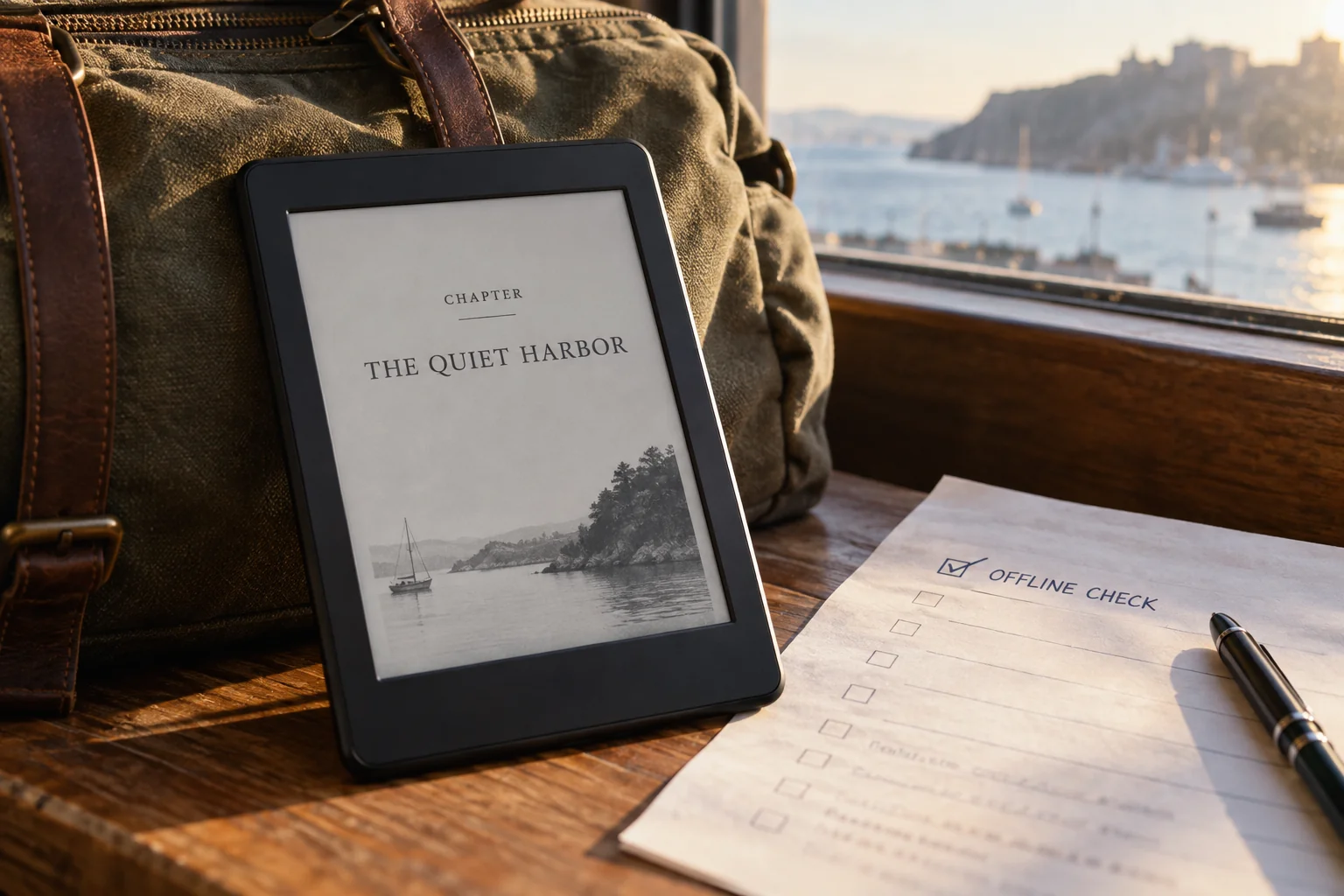
For one book, check three things: is it in the account, is it in the unfiltered Library, and does it open offline? A cover can appear before the whole file has downloaded. Once downloading finishes, briefly turn on Airplane mode and open the book. Turn connectivity back on afterward so normal syncing can resume.
If the device reports insufficient space, review storage and remove only downloads you can recover. Remove download and Permanently delete are different actions; USB-only files need an external backup before removal. Amazon’s storage and removal guidance explains the distinction.
Fix connectivity before changing the library
Verify that the Kindle can reach an online service, not merely display a Wi-Fi symbol. A public hotspot may require a separate sign-in page. Amazon’s Wi-Fi troubleshooting covers hotspot sign-in, network credentials, router range, and connection troubleshooting.
- Turn Airplane mode off and select the intended network.
- Try the Kindle Store or a simple browser page.
- Check whether another device can use the same network.
- Move closer to the router; forget and rejoin the network only if the saved connection fails.
- Try another trusted network or a compatible phone hotspot, then sync again.
For older supported hardware, check network compatibility too: Amazon says Kindle devices released before 2021 do not support 5 GHz or WPA3. A compatible 2.4 GHz network can therefore be worth checking before blaming the book. Keep the router’s security enabled and follow the linked model-relevant guidance.
If the book downloads on another network, the first connection is the place to investigate. If both networks download other books but fail on this one, focus on the title and its delivery record. Comparing one thing at a time gives you a much clearer answer than repeatedly retrying the same download on the same connection.
Restart the Kindle safely
Choose Restart from the power dialog or the model’s settings, then reconnect and sync. Amazon includes an ordinary restart in its missing-library troubleshooting; it is not the same operation as resetting the device.
Copy any error message before restarting, and let a download finish if it's still progressing. After the restart, reconnect and search for the title again. It may have moved in the grid, so its old position isn't a reliable guide. Note whether the download now starts or whether you see exactly the same failure.
Do not substitute a factory reset for a restart. Amazon warns that a factory reset removes personal data, downloaded content, and unsynced content; it also deregisters the Kindle. On affected retired models, that creates the additional registration problem described above.
If several books keep failing, tell support which ones and what still works. “Three purchased books won't download, but a personal document opens” gives them somewhere to start. It's more useful than simply reporting that the Kindle is broken, and it can help you avoid repeating steps that you've already tried.
Check the Kindle software version
Identify your exact model and compare its installed version with Amazon’s current software list. Updates normally download and install over a wireless connection, but a manual update may be appropriate when the device is behind and ordinary troubleshooting has failed.
Choose the update package for the exact model, charge the Kindle and follow Amazon's instructions. Two devices can look almost identical while needing different software. Note the version installed before you begin. If you later contact support, you'll be able to say what changed and whether the missing-book problem changed with it.
After an update, repeat the same checks: account, Library and offline opening. Updating the software doesn't by itself show that the book has arrived. For a retired model, check its service limitations first; an update file still being available doesn't necessarily restore the ability to download new books from Amazon.
Special cases that need a different fix
If the missing item is a loan, a document you sent yourself or a newer edition of an old purchase, use the matching section below. These cases have a few extra steps.
The book is a Kindle Unlimited title
Check your current borrowed titles and membership access, then use the Kindle Unlimited filter where available. Kindle Unlimited provides borrowing access, not a permanent purchase, and its catalog can change. Amazon’s Kindle Unlimited guidance explains current loans, returns, and catalog availability.
If you returned the KU book, look up whether you can borrow it again. If it is still in your current loans, work through delivery instead. A changed badge on the store page doesn't tell you everything about an existing loan, so check the actual borrowing record before deciding that access has disappeared.
You may also own a purchased edition of a book you've borrowed through KU. Find that order separately. When asking for help, say whether you're trying to open the purchase or the loan so support can check the correct record and send the right edition to your device.
The book came from a public library
Check that the loan is active and complete the lending service’s Kindle handoff. For U.S. Libby loans with a Kindle option, use Shelf → Loans → Read With… → Kindle, sign into the intended Amazon account, and select Get Library Book. These are Libby’s Kindle delivery instructions.
If Kindle is not offered, check the title’s supported reading formats. Libby notes that not every ebook supports Kindle delivery and that downloading another format can restrict the choice for that loan; see why a book cannot be sent to Kindle.
Expired Kindle loans are automatically returned, according to Libby’s return guidance. Renew or borrow again through the library when available. Repeated device sync cannot extend the lending period.
The file was sent through Send to Kindle
Check the processing result, destination account, and Documents view before resending the manuscript. For web uploads, enable Add to your library if you want the document available to other linked devices. Amazon’s Send to Kindle documentation lists accepted formats, including EPUB and TXT.
For email delivery, an unapproved sender can prevent arrival. Amazon identifies this as error E014; other errors distinguish unsupported, protected, corrupted, and oversized files. Follow the matching entry in its Send to Kindle error guide rather than repeatedly sending an unchanged attachment.
Keep your original manuscript, repair or re-export an authorized copy, and try a small comparison document through the same route. For EPUB transfer choices, see how EPUB delivery to Kindle works. Changing a filename extension is not a substitute for conversion.
The file was copied locally
Inspect the device that received the transfer: a USB copy does not automatically become a cloud-library item on another Kindle or phone. Amazon’s personal-content transfer guidance distinguishes local files from cloud-stored documents.
Compare the copied file's size with the original and check the folder and format your particular Kindle supports. Send to Kindle can convert an EPUB, but copying that same EPUB directly by USB is a different process. Finish the transfer, disconnect safely and then check the device's library for the local file.
If copying stopped halfway through, keep the original on your computer, remove the incomplete device copy and try the supported transfer again. Give the Kindle a moment to refresh afterward. An incomplete file won't repair itself by sitting in the folder, and an incompatible format needs conversion rather than another identical copy.
The cover is missing but the title opens
If the book opens, start with the missing cover as a display problem. Search by title, open the beginning and try a later chapter. You may have a readable book whose thumbnail hasn't appeared, which calls for a smaller fix than replacing the purchase or changing the account.
A useful description is: “The book opens, but its Library cover is blank.” That tells support what's working as well as what's missing. If only a few pages fail, give those locations instead. You don't need to know the technical cause to describe the symptom clearly and avoid unnecessary changes.
The book is an updated edition
Look for Update Available beside the book in Manage Your Content and Devices, then choose Update if offered. Amazon’s book-version instructions also explain Automatic Book Update under Preferences.
Before removing a downloaded copy, sync your reading progress and preserve any important notes or highlights. Note which edition you have and which update you're expecting. If the new version doesn't appear, those details will help you explain whether you're waiting for a correction to the same book or an entirely different release.
Distinguish corrections to an existing book from a separately published edition. KDP’s book-details rules require a new edition for certain locked-detail changes. Compare product records and account actions; do not assume updating an older purchase will supply a separately listed edition.
When to contact Amazon support
Contact Amazon when the correct account contains the title but a supported, correctly registered Kindle still cannot receive or open it after connectivity, delivery, and sync checks. Also ask for help when an apparently completed order is missing from content management or the delivery screen excludes your device. Amazon’s library troubleshooting guide directs unresolved cases to customer service.
Have these details ready so you can explain the problem without retracing everything during the support conversation:
- Exact title, author, edition, and order number if available.
- Amazon marketplace and account email, shared privately with official support.
- Kindle model, software version, and device name.
- Whether the title appears in the account, unfiltered Library, and Downloaded view.
- Whether it opens offline or on another registered device.
- Exact delivery, download, or processing error.
- Which checks changed the result and which did not.
For an expired library loan or missing Kindle-format option, start with the library instead. Keep passwords, verification codes, and full payment details out of messages and screenshots.
Prevent the same problem later
Make future delivery and recovery easier with a few habits:
- Give devices distinct names, such as “Bedroom Kindle” and “Phone app.”
- Keep purchase confirmations so the account and marketplace are easy to identify.
- Sync before switching devices; Amazon’s sync instructions explain which reading information is backed up.
- Keep original personal documents outside the Kindle library.
- Finish downloads and check offline opening before a trip.
- Before replacing, selling, resetting, or deregistering a device, check backups and its service-support status.
Example: a book on your phone but missing from your Kindle
Imagine you've bought The Quiet Harbor. It opens in the Kindle app on your phone, but you can't see it on your supported Kindle e-reader. Both use the same Amazon account, and the book appears in Manage Your Content and Devices. On the Kindle, the Library is currently filtered to Downloaded.
You clear the filter and the book appears. Tapping it on Wi-Fi downloads it; after that, the first chapter opens with Airplane mode on. In this example, the account and purchase were fine all along. The Kindle was showing only the files already stored on that device, and this book hadn't downloaded yet.
That's enough to explain the fix: the book was in the account, clearing the filter revealed it and downloading made it readable offline. There was no reason to buy it again, reset the Kindle or install different software.
If clearing the filter hadn't revealed the title, the next step would have been delivery from the account. You'd then note the chosen device and any error message. This is an illustrative troubleshooting example, rather than a test on a physical Kindle, but it shows how each result helps you choose the next useful action.
Try a small comparison file
Use the original two-chapter sample EPUB and its matching source text as comparison material when a personal manuscript fails. The sample package contains two chapter files and a navigation document; the matching text provides a simpler representation of the same material.
Send the sample EPUB and your own manuscript the same way, using the same account and destination. You can also try the matching text file. For each, check whether Amazon accepts it, whether it appears under Documents and whether it downloads and opens. Comparing those steps is more useful than simply sending your manuscript over and over.
- Sample succeeds; manuscript fails: inspect the manuscript’s structure, resources, and reported conversion error.
- Text succeeds; EPUB fails: concentrate on packaging or conversion before changing device registration.
- Both fail: inspect the account, service response, and delivery route before rewriting the manuscript.
If the sample works and your manuscript doesn't, you have a good reason to inspect the manuscript's file or export settings. If neither works, look at the shared delivery route and any errors. The comparison narrows the problem; it doesn't guarantee a diagnosis. Keep the originals and error messages so you can continue without losing track of what you've tried.