Table of Contents
Yes—you can read EPUB books on a Kindle. Upload the EPUB through Amazon’s Send to Kindle service, and Amazon converts it for your device. Simply copying the original EPUB over a USB cable won’t do the same thing. For most readers, the easiest option is the Send to Kindle web page.
You’ll need an EPUB without DRM or password protection, plus the Amazon account registered on your Kindle. Below are the steps for sending it from a computer or phone, the email limits, and fixes for the problems you’re most likely to run into. If you’re preparing a book to sell through KDP, there’s a separate section for that too.
Why Kindle accepts EPUB through Send to Kindle
EPUB is on Amazon’s list of supported Send to Kindle formats. You give Amazon the EPUB, and its service prepares a reading copy for your Kindle library. You don’t need to convert a suitable EPUB to MOBI first.
Keep these three things separate when you follow a tutorial:
- The original EPUB: the file you bought, downloaded or exported. Keep a copy on your computer or phone.
- Send to Kindle: the service that uploads and processes it. Amazon’s email instructions describe the conversion to Kindle format.
- The Kindle copy: the personal document you download from your library and read. Sending it to yourself doesn’t publish it in the Kindle Store.
This explains why some instructions say Kindle supports EPUB and others say it doesn’t. They may be describing different stages. Amazon’s file-transfer guide lists EPUB for wireless Send to Kindle; that list isn’t a promise that an unchanged EPUB copied into the device’s Documents folder will open.
How to send an EPUB to your Kindle
Open Send to Kindle, sign in, add your EPUB, turn on “Add to your library,” and send it. Then connect your Kindle to the internet, sync the library and download the book. The web uploader accepts files of 200 MB or smaller, according to Amazon’s delivery instructions.
Here’s the process in a little more detail:
- Find the right EPUB. Use a file you’re allowed to transfer and that isn’t locked to another reading service. If you wrote the book, open the export first to check that it contains the latest text.
- Sign in to the right Amazon account. It needs to be the account used by your Kindle or Kindle app. A successful upload to another account won’t put the book on this device.
- Add the file at Send to Kindle. Check any displayed title and author information. If you have several drafts, make sure you selected the intended version.
- Enable “Add to your library.” This lets you download the document on devices linked to the account. Submit the file and watch for completion or an error.
- Sync and download. Connect the Kindle to the internet and look in the library, including personal documents. Download the new copy if it isn’t already available offline.
- Open the book. Check the first chapter and try a contents link. If this is a revised manuscript, find a sentence you changed so you know you’re reading the new version.
For an Automateed manuscript, download the current EPUB export before starting. Put older exports in a separate folder. A name such as Garden-Guide-revision-2.epub helps in the file picker, but check the title inside the book too: changing a filename doesn’t necessarily change the title shown in the library.
Can you email an EPUB to Kindle?
Yes. Attach it to an email sent to your assigned Send to Kindle address. First approve your sending email address in Amazon’s Personal Document Settings > Approved Personal Document Email List. The receiving address is the Kindle address assigned to your device or app, not your usual Amazon sign-in email.
Amazon’s email requirements allow up to 25 attachments and a total document size of 50 MB or less. Start with one EPUB attached directly. Sending a link to a download page is different from attaching the file itself.
If the EPUB is too large for email but below the web uploader’s 200 MB limit, use the web page. That’s a simpler first step than experimenting with compression. Keep any error message you receive; it can tell you whether the problem is the attachment, sender approval or something else.
Can you send it from your phone?
Yes. You can use the Kindle app’s sharing workflow on iPhone or Android, or upload the file through your browser. Download the EPUB to your phone first, then follow the relevant mobile instructions linked from Amazon’s Send to Kindle overview.
If Kindle doesn’t appear in the sharing options, try the web uploader with the saved file. Check that the browser and Kindle app use the same Amazon account. Once the document arrives, open it in the app before assuming it has also downloaded onto a separate e-reader.
Which method should you use?
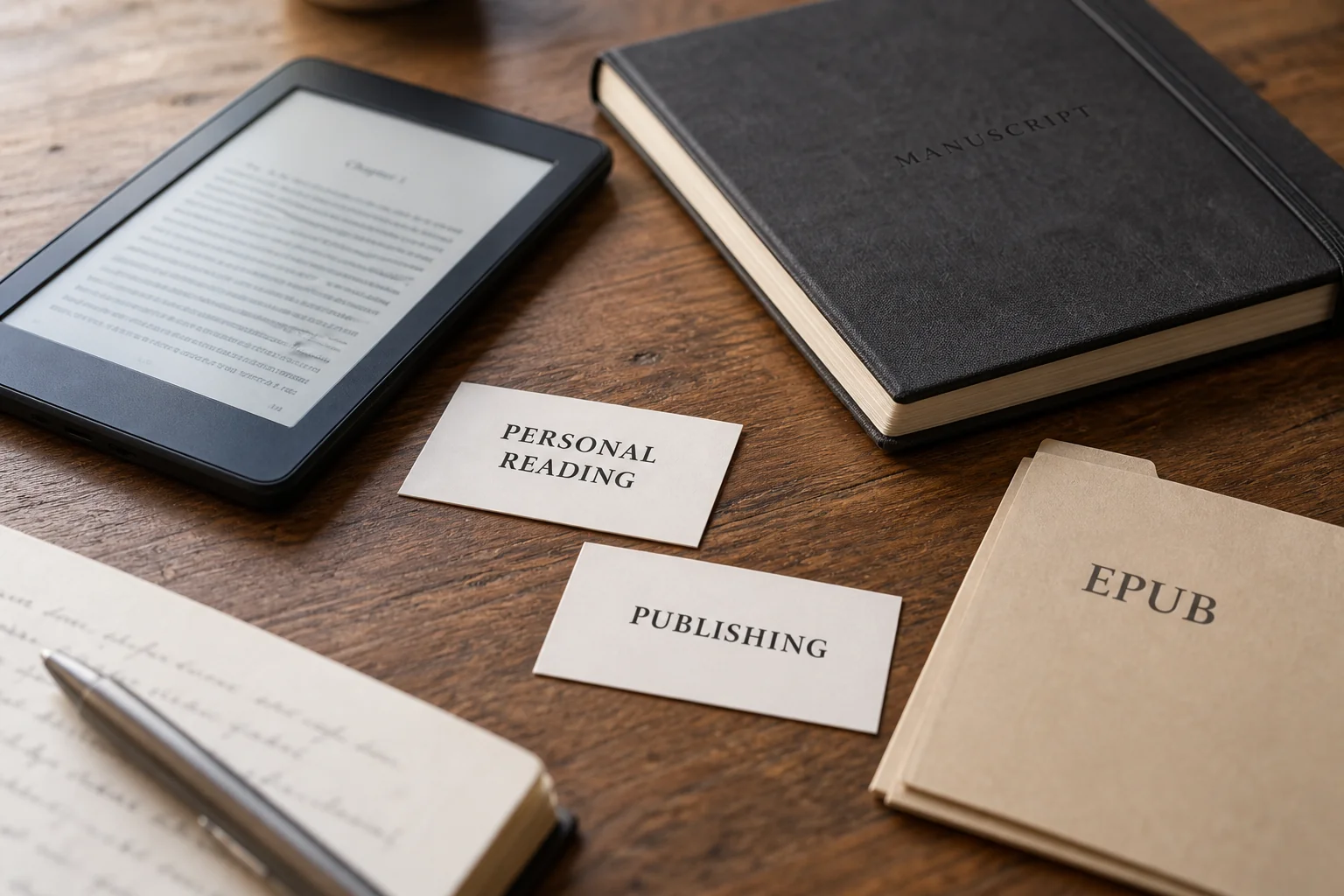
For personal reading, start with Send to Kindle. For publishing, use KDP. For checking an author’s manuscript before upload, use Kindle Previewer. These tools can all be part of working on a book, but they do different jobs.
| Your goal | Use this route | What to verify |
|---|---|---|
| Read an authorized, DRM-free EPUB | Send to Kindle | Upload, processing, destination account, download |
| Publish an ebook on Amazon | KDP manuscript upload | Publishing requirements and converted-book preview |
| Check an author’s manuscript | Kindle Previewer; personal delivery as an additional reading check | Chapter order, navigation, typography, illustrations |
| Read a purchased EPUB with DRM | The seller’s authorized reading system | Required application and account authorization |
| Keep an exact page design | Evaluate PDF or an appropriate fixed-layout publishing workflow | Legibility on the intended screen and supported devices |
If you bought an EPUB and it won’t send, read the seller’s download instructions. Some purchases are locked to a particular app or account through DRM. The .epub extension doesn’t remove that restriction. Amazon’s error guide says password-protected and other encrypted files aren’t supported; ask the seller whether a transferable DRM-free edition is available.
For your own manuscript, decide what you want to check. Reading chapter four comfortably on an e-reader is a useful personal test. Checking every chapter and note in the publishing conversion is a different task. Give yourself the right tool for the question instead of repeating the same upload and hoping it proves everything.
What to do if the EPUB won’t arrive or open
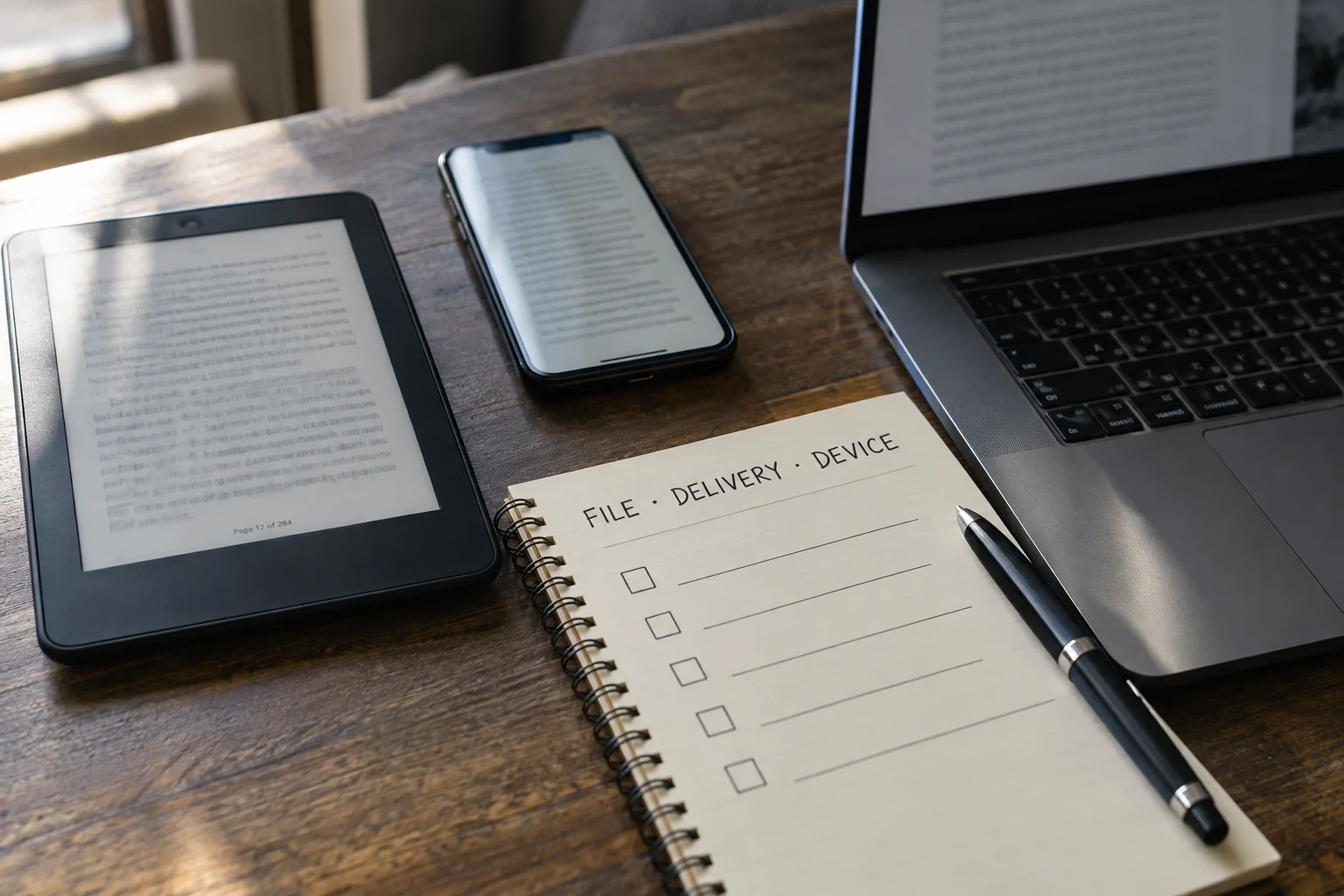
Start with the last thing that worked. Did the file open on your computer? Did Amazon accept the upload? Is the document in your library but missing from one device? These clues help you avoid rewriting a perfectly good EPUB when the real problem is an account or download setting.
Amazon’s error-code instructions identify E004 with protected files, E007 with attachment size, E014 with an unapproved email sender and E999 with an internal service error. For an internal error or maintenance, Amazon advises trying again later.
| Symptom | First check | Useful next action |
|---|---|---|
| Upload rejected immediately | Actual file type, protection, size, and local readability | Use a suitable source or re-export a damaged file. Changing a PDF’s extension does not create an EPUB. |
| Email delivery fails | Sender approval, assigned recipient address, and attached file | Correct the email setup; try one attachment within the documented allowance. |
| Upload accepted, but book absent | Processing outcome and account used | Look for an error and check the submitted document details before sending another copy. |
| Present in the library, missing on one device | Account, internet connection, library filters, and download status | Show the full library, including documents, then sync and download the intended copy. |
| Repeated cover inside the book | Cover treatment and a separate cover page in the source | Check for duplicate content before removing either element. |
| Missing cover | Whether the problem is the library thumbnail or the opened book | Inspect the EPUB’s cover resources and the delivered opening separately. |
| Contents entry opens the wrong place | Navigation target and destination identifier | Repair the source link and recheck every changed entry. |
| Text overlaps when enlarged | Fixed heights, positioned text, and nearby images | Simplify the affected section and compare it at the same enlarged setting. |
One common manuscript problem is opening the old copy. Suppose revision 2 looks right on your computer, but the Kindle still shows the old chapter title. Check the delivered title and an edited sentence before changing the file again. An earlier download may still be sitting next to the new one.
If the correct revision opens but a diagram overlaps its caption, focus on that section. Change the layout in your source, export a new version and check the same diagram at the same text size. For library, account and device problems beyond the file, see our guide to a Kindle book not showing up.
Why the book may look different on Kindle
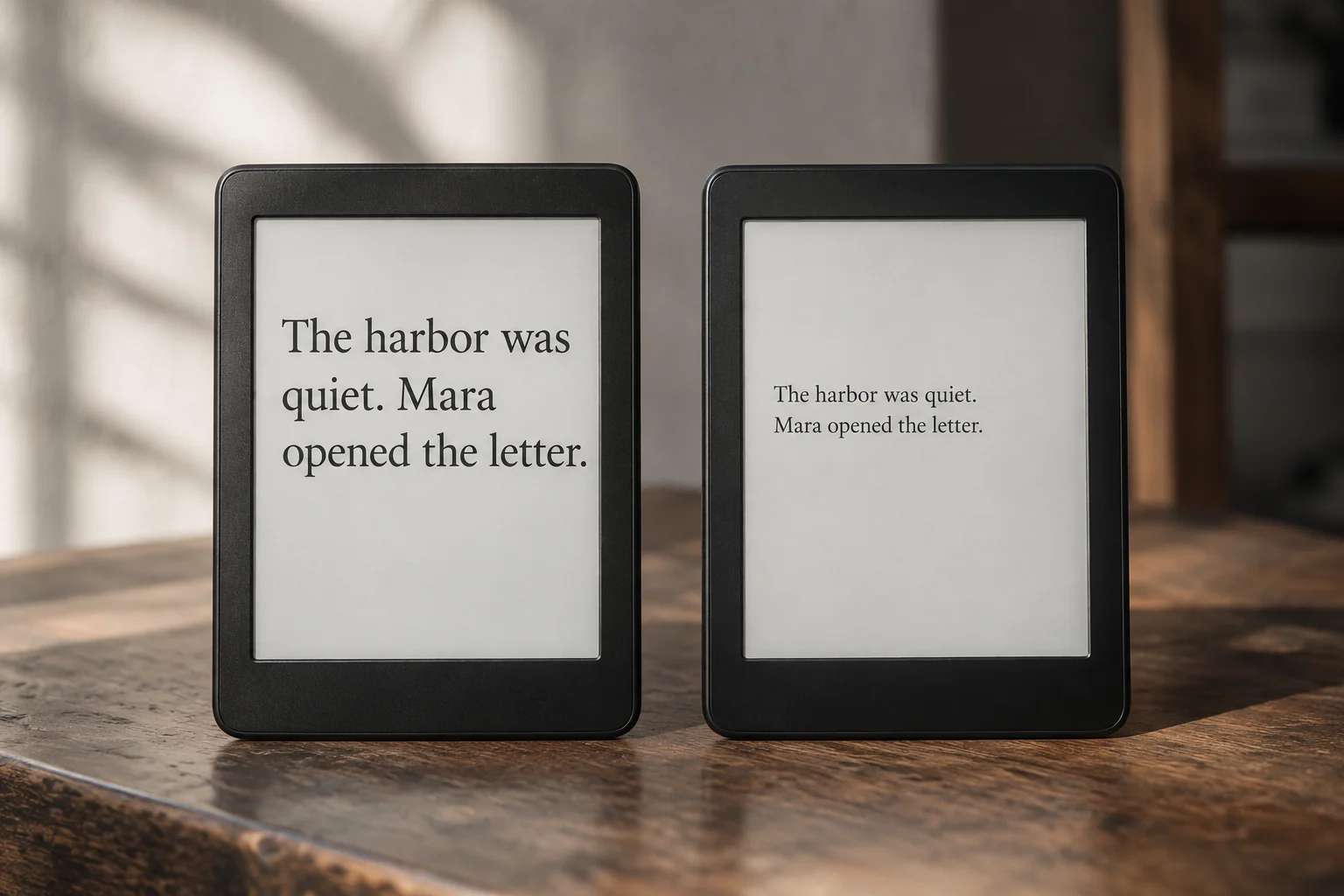
A reflowable ebook adjusts to the reader’s screen and font settings. Its words should stay in order, but the line endings and screen breaks will change. Making the font larger can turn one screen of text into several. That’s useful reading behavior, not automatically a formatting problem.
Amazon describes ordinary text-heavy fiction and nonfiction as reflowable content. The EPUB specification covers the package, content, styles and navigation; it doesn’t require every reader to display the book identically.
After sending a manuscript, check the parts where a change could affect understanding:
- Navigation: does each contents entry open the intended chapter?
- Chapter starts: are headings distinguishable, and is any opening text missing?
- Illustrations: can you read important labels without a desktop-sized screen?
- Tables: can you follow a complete row without losing its column headings?
- Fonts: is the text still understandable if its appearance differs?
- Notes: do outbound and return links reach useful locations?
- Positioned elements: do boxes, spreads, or captions interfere with the reading sequence?
A heading wrapping onto two lines is usually fine. A heading hiding the paragraph below it isn’t. Similarly, a picture changing size may be harmless, while a diagram with unreadable labels needs attention. Look for missing information, broken navigation or difficult reading before trying to make every screen match a printed page.
Fix formatting in the original manuscript
If the same problem appears every time, go back to the editable source. Keep it with the exported EPUB and find the smallest passage that shows the fault. Fixing one troublesome table is easier than repeatedly converting the entire book through different formats.
EPUBCheck can find structural problems in an EPUB package. It’s helpful when investigating markup or packaging errors, but a successful validation doesn’t tell you whether a caption is pleasant to read on a small screen. You still need to open the book and inspect it.
Give chapters working navigation
Use proper heading styles for chapter titles and build the contents navigation around the intended destinations. Large, bold text may look like a heading without behaving like one. A readable contents page needs working links as well as convincing typography.
In our gardening example, selecting “Preparing the Soil” should take you to that chapter’s opening. If it lands at the end of the previous chapter, correct the target before changing the font. Try later entries too; getting the first chapter right doesn’t establish that all the other links are correct.
Let the text grow when readers enlarge it
Avoid trapping ordinary paragraphs inside boxes with fixed heights. Read a sample at a normal font size, then enlarge it substantially. The text may take more room, but it should remain complete and in the right order.
Imagine a short introduction fitted neatly into a box on your computer. On the Kindle, larger text needs more height and starts overlapping what follows. Remove the unnecessary height restriction or turn the box into an ordinary heading and paragraph, then export again. You’re preserving the explanation, not its exact rectangle.
Check illustrations at a small screen size
An image can be present but still be too small to use. Look first at diagrams, labels and symbols that carry information. Amazon’s ebook quality guidance includes image alternatives and preview checks; add descriptive alternative text where appropriate.
A dense planting diagram might work better as a simpler picture with a numbered explanation in the text. Check a large figure and a small inline symbol rather than assuming one good image proves all the sizing is right. Readers shouldn’t need a desktop monitor to understand a necessary label.
Keep the caption next to the figure in the source reading order. At a larger font setting they may move onto different screens, but the connection should still make sense. Don’t rely entirely on the caption sitting at a particular spot on a printed page.
Follow the links in both directions
Try every contents entry, then check notes and their return links. A footnote that opens correctly but leaves readers struggling to find their place is only half finished. Look at the destination, not just whether tapping produced a response.
Use helpful link text such as “container sizing table.” If you move or rename that table, follow the link again. For outside sources, keep enough explanation in the ebook for the passage to make sense offline. A reference can offer more detail without becoming the only place an essential instruction exists.
Replace web features with readable alternatives
Don’t assume that an interactive feature from a website will survive ebook delivery. Ask what it helps the reader do, then provide an alternative suited to reading. An essential explanation shouldn’t disappear just because its original format was a button, animation or script.
A calculator can become a formula with a worked example. A quiz can become questions and a linked answer section. After replacing it, revise instructions such as “press the button below” so they describe what’s now on the page.
Read the replacement from beginning to end. Can you still get the answer using the material in the book? This catches a common mistake: removing the troublesome feature while accidentally removing the only explanation of the process too.
Is EPUB or PDF better for Kindle?
Choose EPUB for a novel or text-heavy book you want to read with adjustable fonts. Choose PDF when the fixed page layout matters. A printable worksheet and a long chapter have different needs, even if you wrote them in the same document.
Amazon accepts both through its personal-document service. For a PDF, check whether the page is comfortable to read on your actual screen. Successfully sending it doesn’t make tiny print easier to read.
Our gardening chapters suit EPUB, while a planting-calendar worksheet may be more useful as a separate printable PDF. If you need that companion, use an EPUB-to-PDF conversion and check the page breaks, labels and writing spaces. Converting the whole book to fixed pages just to put it on Kindle can create a new reading problem rather than solve the original one.
What if you’re publishing through KDP?
KDP accepts EPUB files that meet its publishing requirements. Its manuscript-format guidance recommends checking them in Kindle Previewer before upload. Sending a copy to your personal Kindle can help you read it, but it doesn’t replace checking the KDP upload.
Kindle Previewer offers different device, orientation and font-size views. Use them on the demanding parts of the book, not just the first page. After uploading a corrected manuscript, inspect the new upload in KDP’s online preview too.
- Cover and opening pages: confirm the intended sequence and look for unintended duplication.
- First and later chapters: compare headings, chapter starts, and paragraph treatment.
- Longest heading: check wrapping without collision or truncation.
- Largest illustration and widest table: inspect legibility and reading order.
- Contents and back matter: follow navigation and internal links.
- Notes and special formatting: test the passages most unlike ordinary prose.
Describe a problem precisely before fixing it: “The chapter four caption overlaps the diagram in the narrow preview” gives you something to test again. “The formatting looks wrong” doesn’t. Keep the editable source and export settings so the next version comes from the file you intended to change.
Avoid getting your drafts mixed up
A simple filename and a short note are enough for most personal checks. Record which revision you sent and what you looked at. This is especially useful when the Kindle library contains several copies with similar covers and titles.
For example: “Garden Guide revision 3: contents links work; chapter four diagram checked at large text; old copy still needs removing.” Add the device or app if you’re comparing more than one. You can then repeat a check without wondering which result belongs to which draft.
For personal reading, you’re done when the right copy opens and its text, navigation and images are usable. For publication, finish the KDP preview and any remaining publishing checks. Neither task requires recreating all the print edition’s page breaks.
Try a small EPUB to narrow down the problem
If your manuscript keeps failing, try our two-chapter sample EPUB and its matching source text. The package has two chapter files and a navigation document, giving you something small to inspect without combing through your whole book.
Send it through the same route and account as your manuscript. If the sample arrives and reads correctly while the manuscript fails, look more closely at the manuscript’s structure and resources. If both fail, check the account and delivery steps before making extensive edits.
A successful sample transfer doesn’t prove every part of your manuscript will work. Likewise, two failed sends can come from an account problem rather than an outage. Use the comparison to decide what to check next, then open the repaired manuscript itself before calling the problem fixed.