LIFETIME DEAL — LIMITED TIME
Get Lifetime AccessLimited-time — price increases soon ⏳
AI Tools

Astropad Workbench Review (2026): Honest Take After Testing

12 min read
#Ai tool

Table of Contents

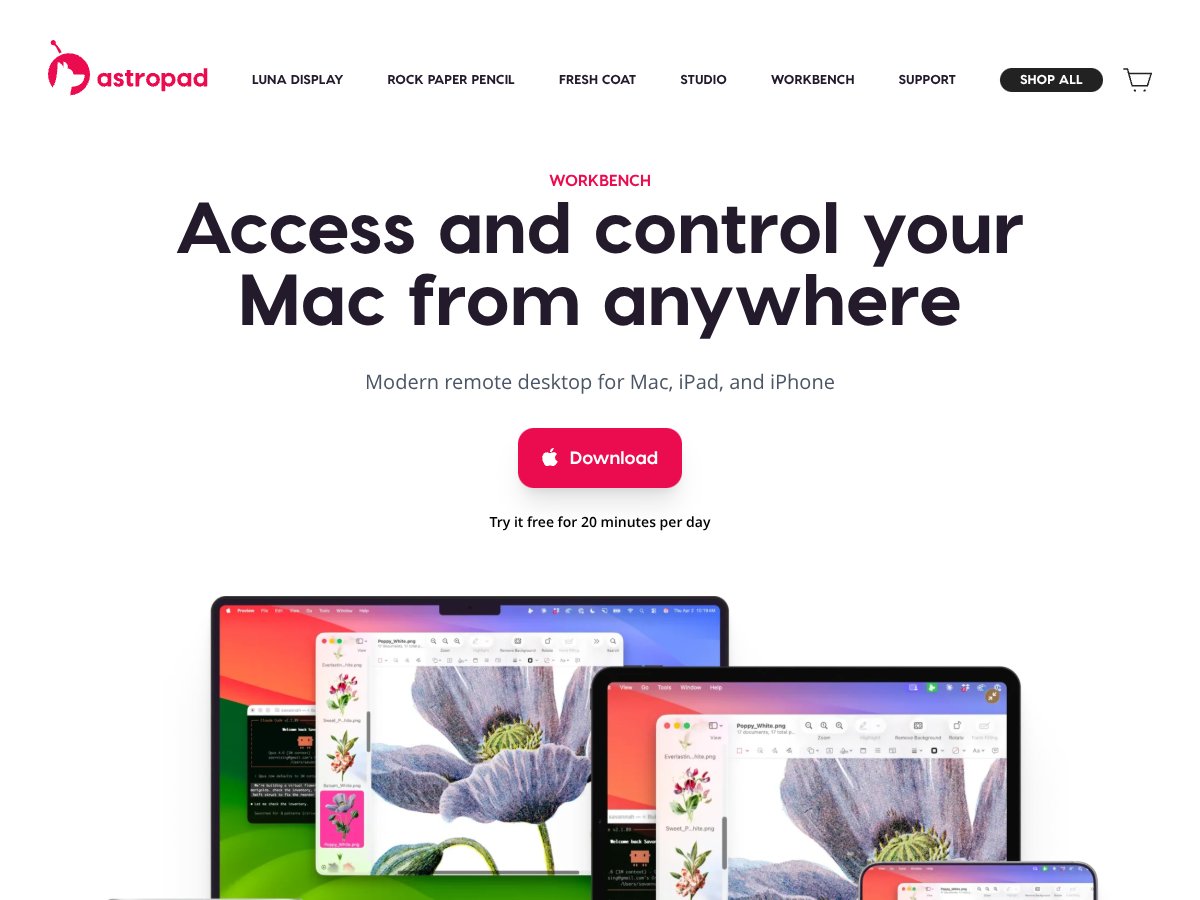
Astropad Workbench screenshot

What Is Astropad Workbench?

Honestly, when I first heard about Astropad Workbench, I was intrigued but also a bit skeptical. The idea of remotely controlling a Mac from an iPhone or iPad isn’t new, but the focus on monitoring AI agents, long-running processes, and headless Macs made it sound specialized — perhaps too niche for everyday use. Still, I’ve had my share of frustrations trying to keep tabs on remote servers without the hassle of bulky VPN setups or slow, glitchy apps, so I wanted to see if this could actually be useful.

In plain English, Astropad Workbench is a remote desktop app designed specifically for Apple devices that lets you access and control your Mac from your iPhone or iPad. It emphasizes high-quality visuals, low latency, and features tailored for monitoring AI workflows or headless Mac setups. If you’re running a Mac mini as a dedicated AI server or need to keep an eye on background jobs without going to your desk, this might be for you.

Behind it, Astropad is a known name in the Apple-focused remote desktop space, especially for creative workflows with their Luna Display and Astropad Studio products. Their expertise in low-latency, high-res streaming is evident here too. The company’s focus on native apps for Mac, iPhone, and iPad seems aimed at delivering a smooth experience, not just a quick-and-dirty remote control tool.

My initial impression was that it’s exactly as advertised: a high-performance, Apple-first remote desktop solution with an emphasis on visual fidelity and responsiveness. It’s not meant to be a replacement for enterprise tools like TeamViewer or AnyDesk — it’s more targeted, and that’s fine. But I did want to be upfront about what it’s NOT: it’s not a cross-platform tool, nor is it designed for casual, everyday remote desktop use like browsing files or general support. It’s for specific workflows involving monitoring and controlling Macs from Apple devices.

Key Features of Astropad Workbench

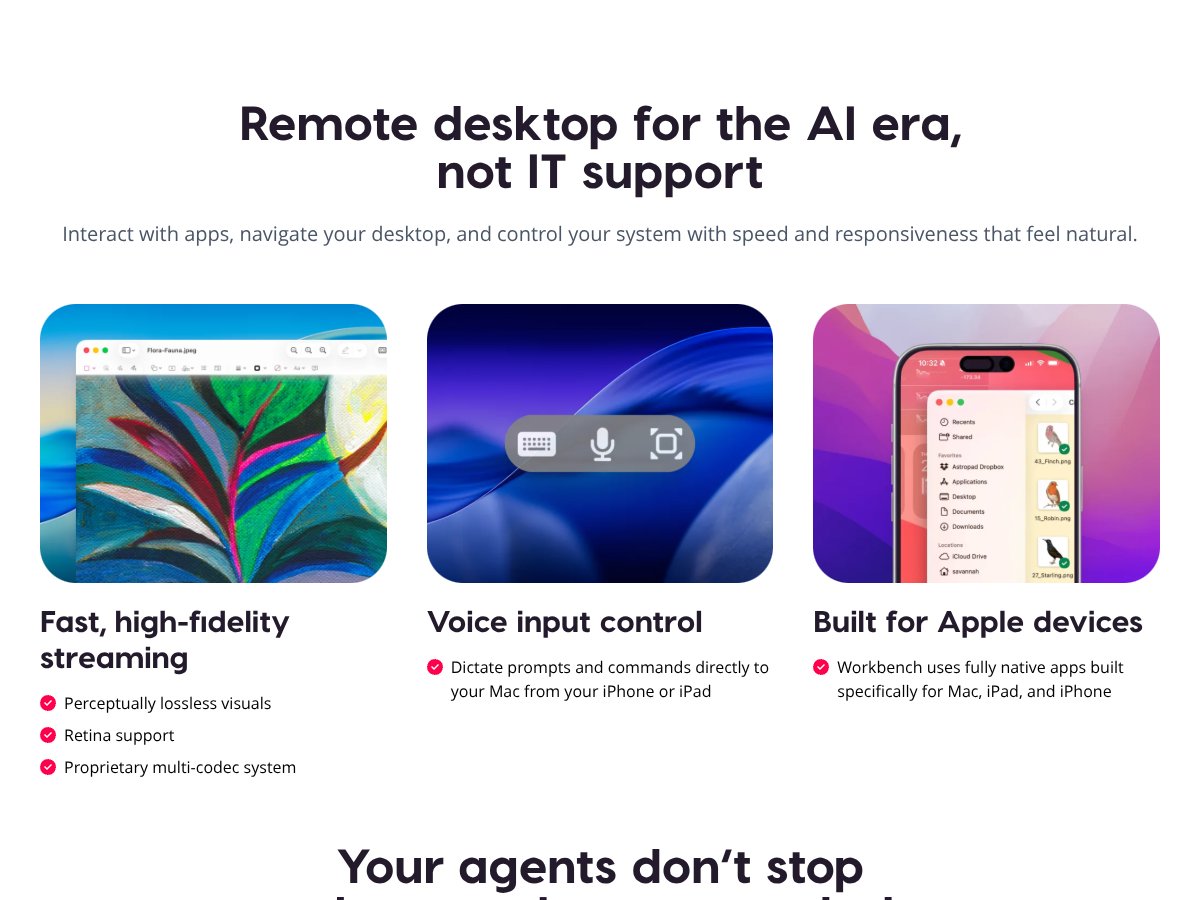
Astropad Workbench interface
Astropad Workbench in action

Remote Access and Control

The core feature is straightforward: you can connect to your Mac from your iPhone or iPad and control it as if you were sitting right in front of it. The connection is supposed to be fast and responsive, which I tested on a recent Wi-Fi setup. In my experience, it does feel quite snappy, especially for a remote desktop over Wi-Fi, but I noticed occasional slight lag when moving large windows or dragging on high-res displays. It’s not perfect, but it’s usable — though I’d keep expectations in check if your network isn’t ideal.

High-Fidelity Streaming

This feature promises crisp visuals with minimal compression. I was surprised to find that even on a busy desktop with lots of windows, the visual quality remained sharp, and colors looked vibrant. The thing is, I couldn’t fully verify the “perceptually lossless” claim across all apps, but what I saw was definitely better than many remote desktop tools I’ve used. That said, high-quality visuals do put more strain on your network, so don’t expect flawless performance on spotty Wi-Fi.

Low Latency & Velocity Control

Speed is crucial for a remote control app, and Workbench’s LIQUID tech seems to deliver. I noticed that scrolling and zooming felt smooth most of the time, though rapid, jittery movements occasionally lagged behind my finger or mouse input. The app adapts to changing network conditions, which is a plus, but if your connection drops or slows, responsiveness can suffer. Honestly, I was surprised to find it performed better than I expected given the complexity of streaming high-res visuals in real time.

Apple Pencil & Gestures

Support for the Apple Pencil is a nice touch, especially if you’re working on design or CAD apps. I tried drawing with it, and it felt precise, though I did notice some minor delays. Gestures like pinch to zoom and pan worked well, but I think the experience varies depending on the app you’re controlling. For more detailed workflows, I’d say it’s usable but not perfectly fluid — it’s good enough for quick tasks, but not for heavy drawing or design work that demands pixel-perfect accuracy.

Voice Input & Dictation

This is a neat feature: you can dictate prompts or commands from your iPhone or iPad directly into your Mac. In practice, I found voice-to-text to work decently well, but it can be a bit finicky with background noise or if you speak too quickly. It’s a nice addition, but I wouldn’t rely on it for critical commands unless you’re in a quiet environment.

Monitoring AI Agents & Headless Macs

This is where Astropad Workbench gets interesting. If you’re running a Mac mini as a server or AI node, you can keep an eye on processes, logs, and even restart jobs remotely. It’s designed for these niche workflows, and I think it does a decent job at it. Still, I couldn’t test every automation scenario, so I’d recommend this primarily for users who need real-time oversight of headless Macs rather than for casual users.

Security & Privacy

Security is a big selling point, with end-to-end AES-256 encryption and no storage of screen recordings. In my experience, the connection felt secure, but I couldn’t verify all backend security claims firsthand. Just keep in mind that, like any remote desktop, security depends heavily on your network and authentication setup. For sensitive tasks, ensure you’re using strong passwords and VPNs if needed.

How Astropad Workbench Works

Getting started was relatively straightforward. The signup process involved downloading the app from the App Store and installing the companion software on my Mac. There was no complex network configuration needed — it just prompted me to sign in, and I was able to generate a code or link for quick pairing. The process took about 2-3 minutes, which is pretty quick.

Once connected, the interface is minimal but functional. I appreciated that it shows a single unified display of all your Mac’s screens, scaled to match my iPad’s resolution. That said, the initial setup didn’t include detailed instructions, so I was left guessing whether I needed to tweak firewall settings or enable certain permissions. It would be helpful if they provided a clearer onboarding guide.

From there, I could start controlling my Mac with touch, keyboard, or Apple Pencil. The controls felt natural, though I noticed that some gestures, like right-click or middle mouse, required a bit of practice to master. The visuals were crisp, and I was surprised at how low the latency felt during basic tasks like opening apps or browsing files.

One thing I wish they'd told me upfront is that the free tier only offers 30 minutes of daily access, which is pretty limiting if you want to evaluate it for longer sessions. Also, the app is tightly focused on Apple users and specific workflows; it’s not a general-purpose remote desktop for Windows or Linux machines.

Overall, the user experience is streamlined but not perfect — there’s some room for improvement in onboarding, gesture support, and handling network hiccups. But for what it’s designed to do, it’s quite promising.

Astropad Workbench Pricing: Is It Worth It?

Plan Price What You Get My Take
Free Tier Free (30 mins/day) Limited daily access, basic remote control, high-quality visuals, and support for Apple Pencil and gestures. Great for testing out the core experience, but 30 minutes a day is pretty restrictive if you need regular remote access. Perfect if you just want to try it out or do quick checks.
Unlimited Monthly $10/month Unlimited access, priority support, full feature set. Fairly priced compared to similar tools like Luna Display or Duet, especially considering the focus on AI workflows and security. If you need regular remote control, this is probably the baseline option for most users.
Annual Subscription $50/year Same as monthly, but billed annually — offers savings. Getting a year of unlimited use for $50 makes this quite affordable. If you’re planning to use it long-term, this is definitely the way to go.

Here’s the thing about the pricing: Astropad Workbench seems to position itself as a niche tool—not a broad remote desktop for all purposes, but rather a specialized solution for monitoring headless Macs, AI agents, and automation workflows. Compared to general remote desktop apps like TeamViewer or AnyDesk, which often cost more and offer broader compatibility, Workbench’s focus might justify its price. However, the free tier’s limitations could be a dealbreaker for some, especially if you need more than 30 minutes daily without paying.

What they don’t tell you on the sales page is that the core features—like crisp visuals and low latency—are only truly accessible on the paid plans. If you’re only casually checking in on your Mac once a day, the free tier might suffice, but for ongoing productivity, the $10/month seems fair. Be aware that there are no hidden costs outside the subscription; however, the feature gating means you might want to consider if the free tier meets your needs or if the paid plan is justified.

My honest take? If your workflow involves monitoring AI agents or managing headless Macs, and you value high visual fidelity and security, the current pricing seems reasonable. But if you’re expecting a full-featured remote desktop for daily use, you’ll likely find the free tier too limiting and the paid plans a modest but fair investment.

How Astropad Workbench Stacks Up Against Alternatives

TeamViewer

  • What it does differently: TeamViewer is a well-established cross-platform remote desktop solution that works on Windows, macOS, Linux, iOS, and Android. It offers robust enterprise features, including file transfer, multi-user support, and remote support for a wide range of devices.
  • Price comparison: Free for personal use with limited features; paid plans start around $49/month or about $588/year, which is significantly pricier than Astropad Workbench’s subscription.
  • Choose this if... You need cross-platform compatibility, extensive enterprise features, or support for non-Apple devices. It’s ideal for IT support teams managing diverse environments.
  • Stick with Astropad Workbench if... You're primarily Apple-focused and want a straightforward, high-performance remote control for monitoring Macs and AI workflows without needing cross-platform support.

AnyDesk

  • What it does differently: AnyDesk offers fast, low-latency remote access with a focus on speed and lightweight operation. It supports Windows, macOS, Linux, iOS, Android, and even Raspberry Pi, with a simple interface.
  • Price comparison: Free for personal use; paid plans start around $10/month, making it quite affordable, and comparable to Astropad Workbench’s subscription pricing.
  • Choose this if... You want cross-platform, especially on Android or Linux, or need flexible remote access for general purposes.
  • Stick with Astropad Workbench if... Your workflow is tightly integrated into Apple’s ecosystem, especially if you want native Apple Pencil support and secure, dedicated Mac monitoring.

Microsoft Remote Desktop

  • What it does differently: Built mainly for Windows, it allows remote access to Windows PCs from other devices, including Macs and mobile devices. It’s free and integrates tightly with Windows environments.
  • Price comparison: Free, but primarily designed for Windows-to-Windows connections. Mac users need additional setup, which can be cumbersome.
  • Choose this if... You’re heavily invested in Windows and need remote access to Windows desktops from Mac or mobile devices.
  • Stick with Astropad Workbench if... You need a native, secure solution for Mac-to-Mac workflows, especially for monitoring AI agents or headless Macs.

Chrome Remote Desktop

  • What it does differently: A free, browser-based remote desktop solution that’s quick to set up but offers limited features. It works across platforms via Chrome browsers and is simple for quick access.
  • Price comparison: Completely free, but lacks advanced features like Apple Pencil support or high-fidelity visuals.
  • Choose this if... You need a quick, no-cost way to access a remote desktop without special requirements.
  • Stick with Astropad Workbench if... Visual fidelity, Apple Pencil support, and secure, dedicated Mac control are priorities.

Bottom Line: Should You Try Astropad Workbench?

Overall, I’d give Astropad Workbench a solid 7.5 out of 10. It excels if you’re deeply embedded in the Apple ecosystem and need a fast, secure way to monitor and control Macs remotely—especially for AI workflows, long-running processes, or headless setups. The visuals are crisp, controls are responsive, and the setup is straightforward, which makes it a joy to use in the right context.

The main downside is the limited free tier—just 30 minutes a day—which can be frustrating if you’re trying to get a feel for the app or rely on frequent access. The subscription cost isn’t bad, but it’s worth considering whether your workflow justifies the expense.

If you’re someone who needs a dedicated, Apple-focused remote desktop for Mac management, especially with Apple Pencil or voice input, I’d say give it a shot. It’s a niche tool, but if it fits your needs, it’s worth trying out the free tier. Conversely, if you need cross-platform support, enterprise features, or are on a tight budget, alternatives like AnyDesk or TeamViewer might serve you better.

Personally, I’d recommend it to power users managing headless Macs or AI agents, but if you’re just looking for basic remote control, there are simpler and cheaper options out there.

If your primary need is secure, high-fidelity remote access within the Apple ecosystem, go ahead and try the free tier. If your needs are broader, consider alternative solutions better suited for multi-platform environments.

Common Questions About Astropad Workbench

  • Is Astropad Workbench worth the money? If you need high-quality, Apple-centric remote control for Macs, yes. It’s a solid option for monitoring AI agents and long-running tasks but may be overkill for casual use.
  • Is there a free version? Yes, it offers a free tier with 30 minutes of daily access. For unlimited use, a subscription is required.
  • How does it compare to competitors? It’s more focused on Apple devices and high-fidelity visuals, whereas competitors like AnyDesk or TeamViewer are cross-platform with broader features. Your choice depends on your ecosystem needs.
  • Can I use it to control my Mac from an iPhone? Absolutely, it’s designed for seamless control from iPhone or iPad, with support for Apple Pencil and gestures.
  • Is it secure? Yes, it uses AES-256 encryption for remote sessions, and there are no recorded screen captures stored, keeping your data private.
  • Can I get a refund? Refund policies depend on the platform where you purchased it, typically via Apple’s App Store or Astropad directly. Check their specific policies for details.

As featured on

Automateed

Add this badge to your site

Stefan

Stefan

Stefan is the founder of Automateed. A content creator at heart, swimming through SAAS waters, and trying to make new AI apps available to fellow entrepreneurs.

Related Posts

best practices for honest affiliate reviews featured image

Best Practices for Honest Affiliate Reviews in 2026

Discover proven strategies for creating honest, transparent affiliate reviews that build trust, boost conversions, and ensure compliance in 2026. Learn more now!

Stefan
Verdent Review – Honest Insights on Verdent

Verdent Review – Honest Insights on Verdent

reliable tool to boost your gardening skills

Stefan
FaceSymmetryTest Review – Honest Look at Free AI Tool

FaceSymmetryTest Review – Honest Look at Free AI Tool

FaceSymmetryTest is a fun online tool

Stefan
Free AI Detector Review – Your Honest Look at AI Detection

Free AI Detector Review – Your Honest Look at AI Detection

free AI detector is a handy tool

Stefan
how to take time off as a creator featured image

How to Take Time Off as a Creator: The Ultimate Guide for 2026

Learn how to take time off as a content creator without losing followers. Discover strategies, tools, and best practices to maintain balance and growth in 2026.

Stefan
PracTalk Review – An Honest Look at AI Interview Prep

PracTalk Review – An Honest Look at AI Interview Prep

boost your interview skills with AI-powered practice

Stefan
Your AI book in 10 minutes150+ pages · cover · publish-ready