Table of Contents
If you’ve ever had to dig through a messy PDF—contracts, policies, invoices, whatever—you know the pain. You scroll, you search, you miss something, then you do it all again. PDFConvo basically tries to fix that by letting you “talk” to your documents instead of hunting manually.
In my experience, it’s one of those tools that feels simple right away—but the real question is whether it’s actually useful on the kind of PDFs most people deal with. So I tested it on a mix of document types (text-heavy PDFs, a longer multi-section document, and a couple of pages that were more dense than they looked). I also tried both quick “tell me the gist” prompts and more specific questions where you’d expect the AI to pull exact details.
What I noticed: it’s fast, the interface is easy to use, and the results are often good enough that I didn’t feel like I had to double-check every line. But it’s not magic—if the PDF is poorly formatted or the question needs very exact wording, you still have to sanity-check the output.
PDFConvo Review
Let me be upfront about what I tested and what I asked it to do. I uploaded a longer, structured PDF (multiple sections and headings) and then used it like I would in real life: “summarize,” “find the part about X,” and “pull the key details into something I can skim.”
Here are a few of the prompts I used:
- Quick summary: “Summarize this document and list the main sections.”
- Specific extraction: “What are the key requirements and responsibilities mentioned? Quote the relevant parts.”
- Decision support: “Based on this document, what deadlines or dates should I pay attention to?”
- FAQ-style: “Explain this section in plain English. What does it mean for a non-legal reader?”
What I noticed after a few minutes: the tool feels built for getting answers fast. Uploading was straightforward, and once the PDF was loaded, I could ask follow-up questions without starting over. The browser-based approach also matters—no weird setup steps, no “where did my file go?” anxiety.
Accuracy-wise, the summaries were usually on point for the big-picture stuff. When I asked for specific details (like “deadlines/dates” or “requirements”), the answers were generally useful, but I sometimes had to prompt again when the document phrasing was unusual or buried inside a long paragraph. In other words: it’s great for narrowing the search, not always perfect for copy-pasting exact language without a quick check.
Also, if your PDF is scanned or formatted in a way that makes text hard to read, results can vary. The best outcomes came from PDFs that had real selectable text and clear structure (headings, bullet points, consistent formatting).
Key Features
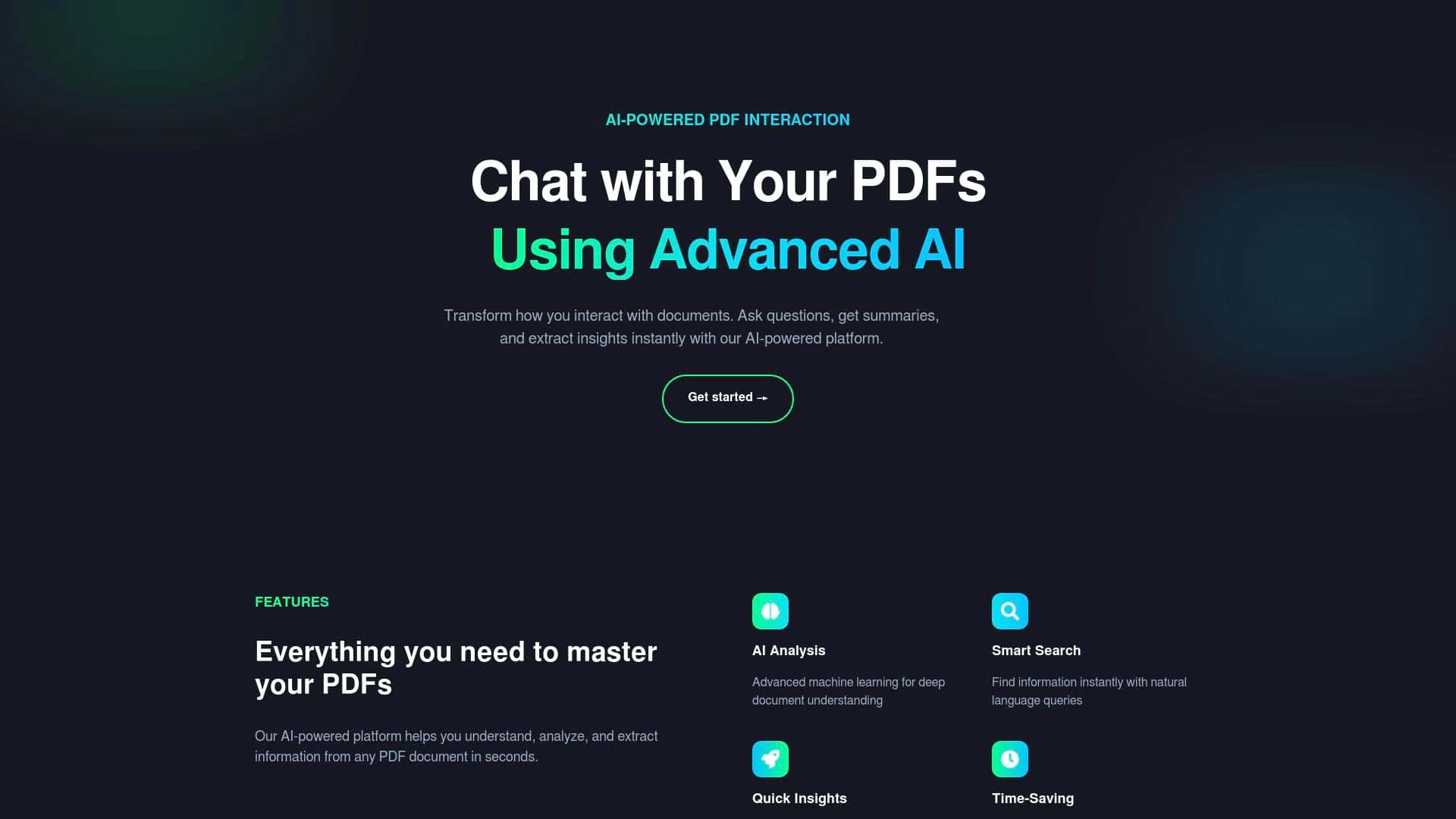
PDFConvo’s feature list is pretty straightforward, but the real value is in how those features behave with real documents. I tested each one by leaning into the kind of questions you’d actually ask.
AI Analysis for deep document understanding
Instead of just summarizing, I tried questions that required the AI to connect ideas across different sections. For example, I asked for “responsibilities + who does what,” and it did a decent job grouping the information.
- Best for: structured PDFs with headings, policies, contracts with clear sections, and long documents you need to skim quickly.
- Where it struggled: when the PDF text was dense and repetitive, the answers sometimes sounded confident but missed a nuance. I had to ask a follow-up like “Which section exactly mentions this?” to get it back on track.
Smart Search with natural language queries
This is the “talk to your PDF” part. I didn’t want to hunt for a keyword; I wanted the meaning. So I asked things like “What are the key deadlines?” and “Find the part about cancellation.”
- What I noticed: it’s faster than manual searching because you’re not matching exact words—you’re describing what you want.
- Limitation: if the PDF uses very specific terminology (or synonyms), you may need to rephrase. One prompt got me close, but a second prompt with slightly different wording pulled the correct section.
Automatic summaries and key points
I tested this with both short and long documents. The summaries were the quickest win. They gave me a scan-friendly overview, and the key points were generally accurate to the sections they came from.
- Tip: if you want a better summary, ask for a format. For instance: “Summarize in 5 bullet points” or “Give me a checklist of action items.”
- Small downside: very detailed documents can produce summaries that are “right, but not detailed enough.” In those cases, it helps to ask follow-ups for specific sections.
Fast processing for time savings
Speed is one of the reasons I kept using it instead of going back to manual scrolling. Uploading didn’t feel like a chore, and responses came back quickly enough that it didn’t break my workflow.
- What I noticed: for longer PDFs, it still felt responsive, but you might need an extra question or two to get the exact detail you want.
Note digitization and management
PDFConvo isn’t just “reading mode.” It can help turn what’s in your PDF into something you can work with (notes, extracted points, and summarized takeaways).
- Best for: turning meeting notes, policy docs, or reference PDFs into something you can revisit without reopening the whole file.
- Reality check: it’s not a replacement for a full note-taking app. Think of it more like a fast extraction/summary layer.
Privacy-focused, browser-based usage
I liked that it’s browser-based. No downloading a bunch of software or setting up weird integrations. That makes it easier to use on the fly.
- What this means in practice: you can stay in your browser and get answers quickly without switching tools.
- One thing to consider: browser-based tools still rely on how your browser handles uploads and sessions—so if you’re working in a restricted environment, it’s worth checking your own security rules.
Pros and Cons
Pros
- Easy to use: uploading and asking questions felt intuitive from the start.
- Great for skimming: summaries and key points helped me find what mattered without scrolling forever.
- Works well for follow-ups: I could ask another question right after seeing the first answer instead of restarting.
- Browser-based setup: no heavy installation steps.
- Free trial: you can test before committing (and honestly, you should—PDF quality matters).
Cons
- Mostly PDF-focused: it’s not a universal “upload anything” solution. If your workflow lives in Word docs, PowerPoints, or other formats, you may need to convert first.
- Cost can creep up: if you’re processing lots of PDFs or doing lots of chat turns, it may add up. I’d treat it like a “when you need answers fast” tool, not a daily unlimited everything machine.
- Limited integration depth: it’s mainly browser-based, so if you’re expecting deep connections to tools like your existing document management system, you may find it a bit standalone.
- Not always perfect on exact wording: for questions that require exact phrasing, I still recommend a quick verification against the PDF.
Pricing Plans
Here’s what I found for pricing: the basic Pro Monthly plan is $2.99 per month. It includes unlimited access to PDFs and chats on the plan, plus basic analytics and email support.
If you’re a team or company, there are enterprise options with custom pricing and dedicated support. And yes—there’s a free trial, which is honestly the smartest way to decide if it fits your PDF types and how often you’ll use it.
My practical take: try it with one of your “worst” PDFs first (the one you usually dread). If it handles that smoothly, you’ll probably feel the value quickly.
Wrap up
So, is PDFConvo worth your time? If you regularly deal with long PDFs and you want to stop manually hunting for answers, PDFConvo is a solid pick. In my testing, it did a great job summarizing and helping me locate relevant info fast—especially when the PDF had clear, selectable text.
On the flip side, don’t expect it to be perfect for exact quotes or for PDFs that are hard to parse. If you want something that speeds up understanding and extraction (not a guaranteed “copy-paste accurate” machine), that’s where it shines.
If you’re thinking about trying it, I’d recommend doing it with one real document you actually need to work on this week. If the answers save you time, you’ll know quickly. If not, you haven’t wasted much thanks to the trial.