Table of Contents
A normal ebook doesn't have a page size. If your book is mostly text (a novel, a guide, a memoir), you publish it as a reflowable EPUB, and the text simply fills whatever screen the reader has. You don't pick 6" x 9" or A5. What you do pick is the size of your cover (2,560 x 1,600 pixels for Kindle) and, only for PDFs or picture-heavy books, a fixed page size.
So the right answer depends on which of three kinds of ebook you're making.
The quick answer
What you're making | Format | Page size |
|---|---|---|
Novel, nonfiction, anything mostly text | Reflowable EPUB | None. Text adapts to the screen |
Children's picture book, comic, cookbook with full-page layouts | Fixed-layout EPUB / Kindle Create | Match your artwork's shape |
PDF you sell or give away yourself | 6" x 9" or A5 for reading, Letter or A4 for printables | |
The cover (all ebooks) | JPEG | 2,560 x 1,600 px (1.6:1) |
Text books: forget page size
A reflowable ebook has no fixed pages. The reader picks the font and size, the text re-wraps, and a page on a 6-inch Kindle holds much less than a page on an iPad. Amazon converts your file this way for all reflowable Kindle books, and that's what readers expect.
This means the page size you set in Word or Google Docs doesn't matter for the ebook. Letter, A4, 6" x 9": Kindle ignores it. What does matter:
Use real headings (Heading 1 for chapters) so the table of contents works.
Don't fake spacing with empty lines or tabs. Use page breaks between chapters.
Keep images simple, and don't put important text inside an image. On a phone it'll be unreadable.
Keep tables small. Wide tables break on small screens.
Then preview it at a few sizes in Kindle Previewer (phone, tablet, e-reader) before you publish.
How your book looks on different screens
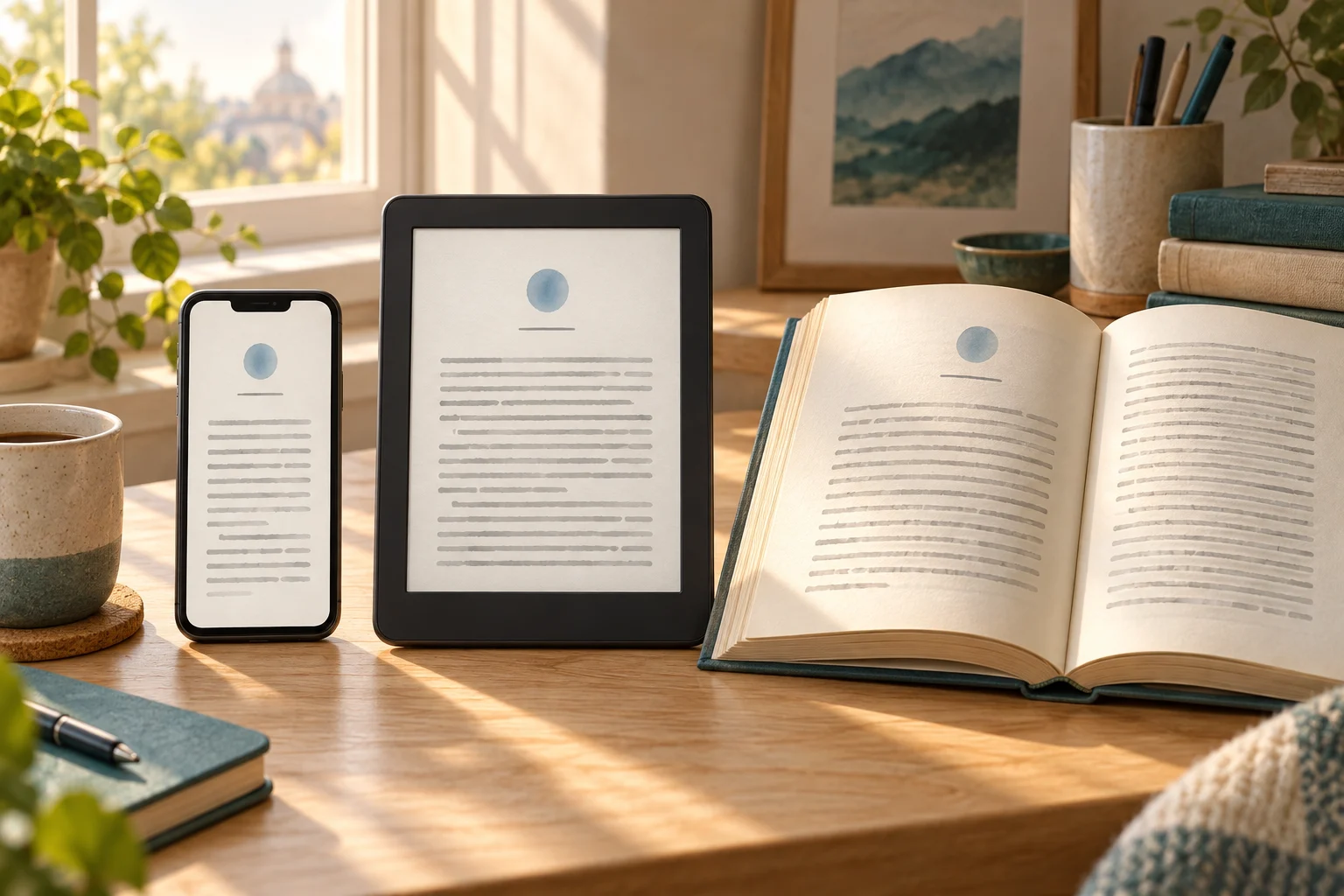
Here's why there's no single "right" page size. The same book gets read on all of these:
Device | Screen | What it means for your book |
|---|---|---|
Kindle (basic) | 6", 300 ppi, black and white | Short pages. Long tables and big images suffer most here. |
Kindle Paperwhite | 7", 300 ppi, black and white | The most common e-reader. Plan for this one first. |
Kindle Colorsoft | 7", 300 ppi text, 150 ppi color | Color images show up, but softer than on a tablet. |
Kindle Scribe | about 10–11", 300 ppi | Close to a printed page. Fixed layouts look best here. |
Phone (Kindle app) | about 6–7", color | Lots of readers use this. Small text in images becomes unreadable. |
Tablet (Kindle app, Apple Books) | 8–13", color | Roomy, sometimes two pages side by side in landscape. |
Amazon's current e-readers range from the 6-inch Kindle to the 7-inch Paperwhite and Colorsoft (the 2026 lineup, per this overview). Your text has to work on all of them, and a reflowable EPUB is the only format that does that without any effort from you.
Set up your file before you export
The page size doesn't matter, but how you build the file does. Here's the setup in the three tools most people use.
Microsoft Word
Format every chapter title with the Heading 1 style (Home → Styles). Use Heading 2 for sections inside a chapter. Kindle builds the table of contents from these.
End each chapter with a page break (Ctrl+Enter, or Cmd+Enter on a Mac), not a row of empty lines.
Set paragraph spacing or a first-line indent in the paragraph settings instead of pressing Tab or Enter twice.
Insert images "In Line with Text" so they stay in the right place when the text reflows.
Save as .docx and upload that to KDP, or turn it into an EPUB for the other stores.
Google Docs
Use Format → Paragraph styles → Heading 1 for chapter titles.
Add page breaks with Insert → Break → Page break.
Download it with File → Download → EPUB Publication (.epub).
Automateed
The structure (chapters, headings, table of contents) is already there when you write a book in Automateed. Open the book, go to Preview & Download and choose EPUB. That file is ready for Kindle, Apple Books and Kobo.
Check it in Kindle Previewer (5 minutes)
Kindle Previewer is Amazon's free app for Windows and Mac. It shows your book the way Kindle readers will see it. Before you publish:
Open your EPUB or DOCX in Kindle Previewer.
Switch between Tablet, Phone and Kindle E-reader in the device menu.
Make the font as big as it goes and page through the book. That's where broken layouts show up.
Check your widest table, your largest image and the table of contents. Tap a few chapter links.
Look at the cover thumbnail. If you can't read the title at that size, neither can a shopper on Amazon.
If something looks wrong, fix it in the original file and export again. Don't try to patch the ebook file itself.
The size you do need: your cover
Amazon's cover guidelines recommend 2,560 pixels high by 1,600 wide, a 1.6:1 ratio. The minimum is 500 pixels on the longest side, the maximum 10,000 pixels per side, and the file can be up to 50 MB. JPEG is preferred and RGB color is recommended.
Don't stretch a smaller image to hit the size. It looks blurry, and Amazon warns against it. Make the cover at full size from the start. A 2,560 x 1,600 cover also works fine for Apple Books, Kobo and Google Play.
Picture books and comics: fixed layout
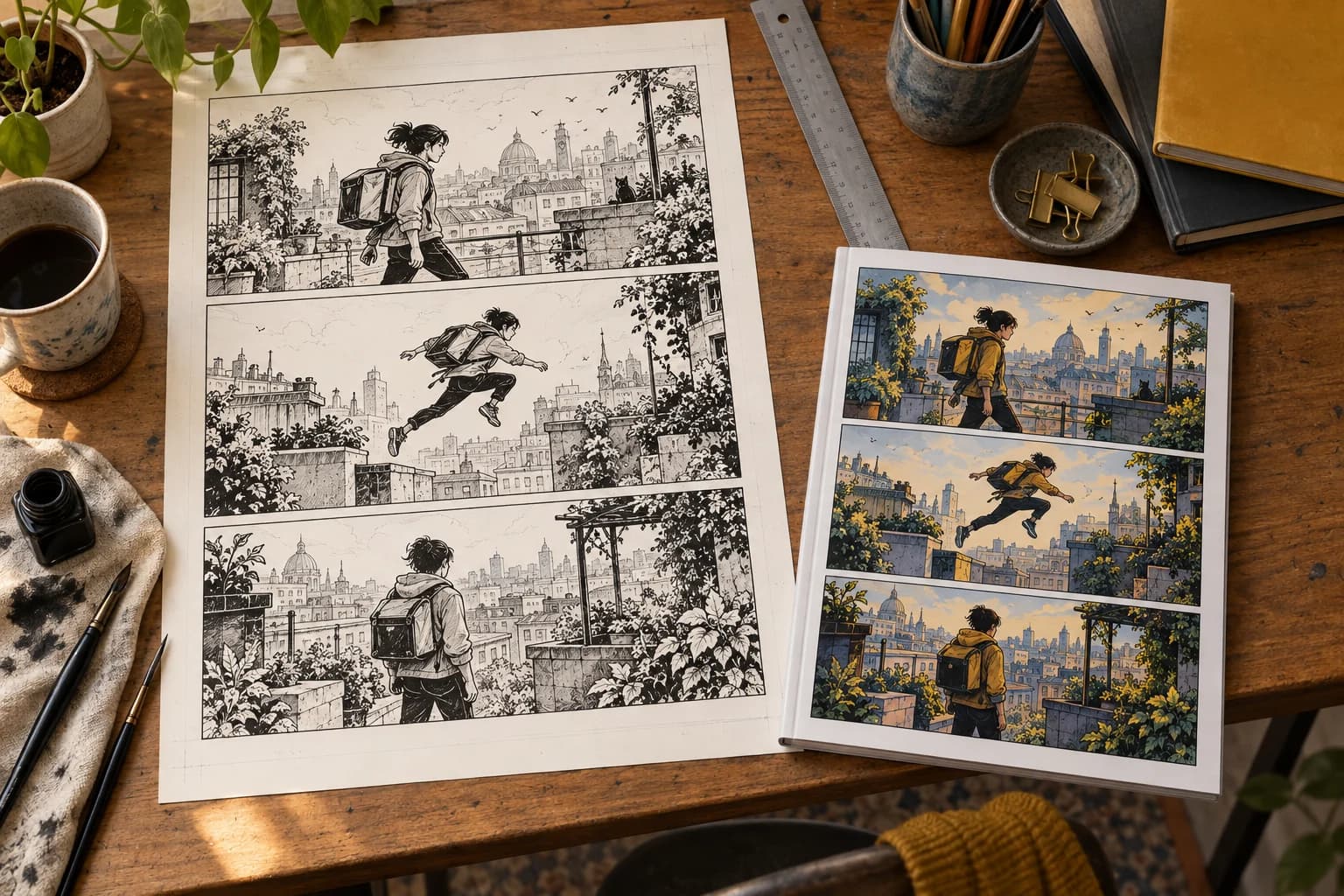
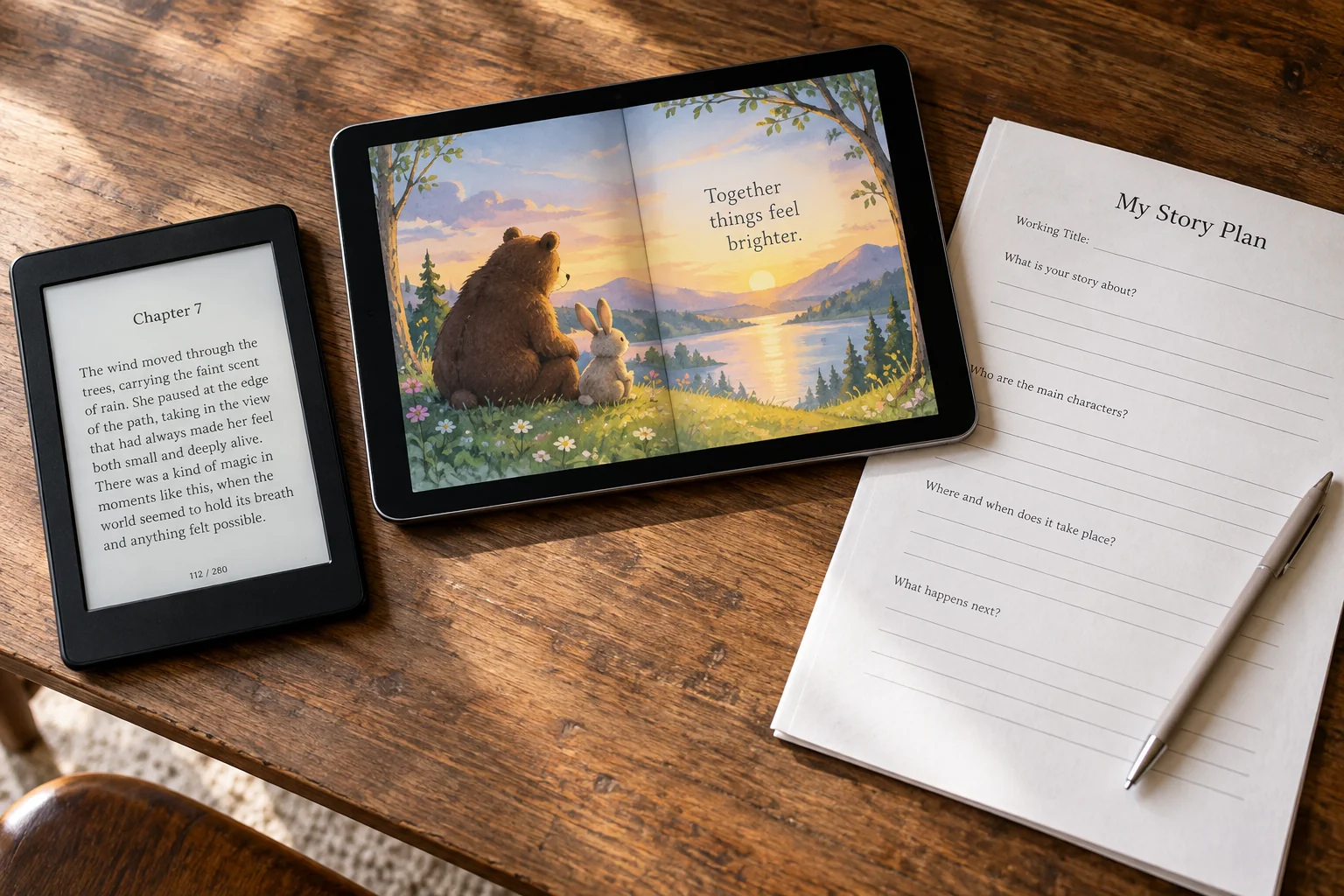
If every page is designed (artwork with text placed on it, comic panels, a cookbook spread), reflowing would wreck it. Then you need a fixed-layout ebook, where each page is basically an image of your design.
Here the page size is the shape of your artwork. Pick it once and keep every page the same:
Landscape or square for most picture books, since that's how they're usually drawn.
Portrait for comics and manga.
For comics, Amazon's fixed-layout guidelines recommend images at 300 ppi and planning for zoom, with 2,880 x 1,800 pixels as the preferred default. The easiest route is Kindle Create, which builds the fixed-layout file for you.
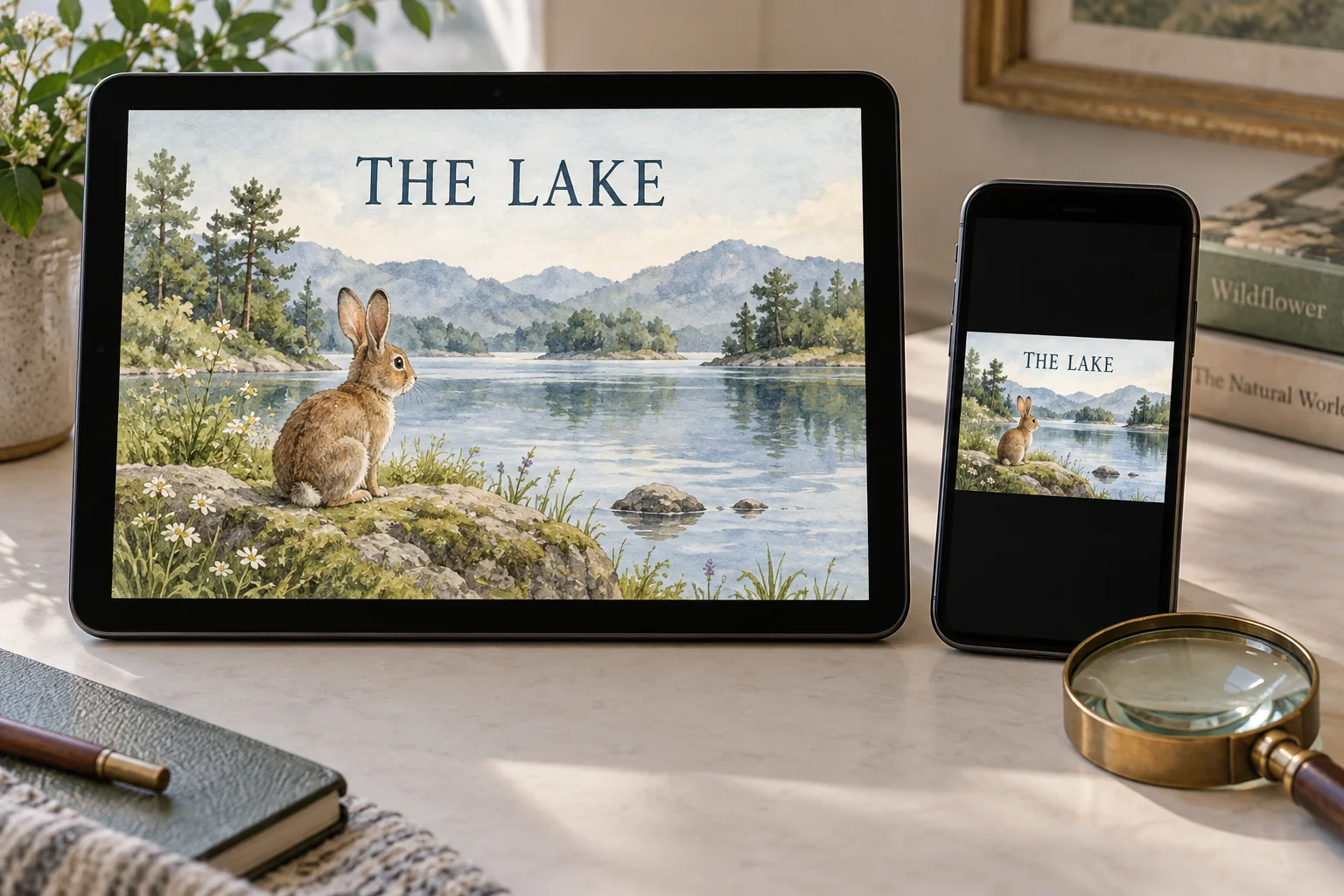
The catch: fixed-layout books look small on phones and basic Kindles, because the whole page has to shrink to fit. Keep text big, and never put small labels on artwork.
PDF ebooks: pick a size for the reader
If you sell a PDF from your own site, Gumroad or a course, you do choose a page size, and it should match how people will read it:
6" x 9" or A5 for reading on screens. They look like a real book and fit tablets well.
US Letter (8.5" x 11") or A4 for workbooks, planners, checklists and anything people will print. Use Letter for a US audience and A4 for everyone else.
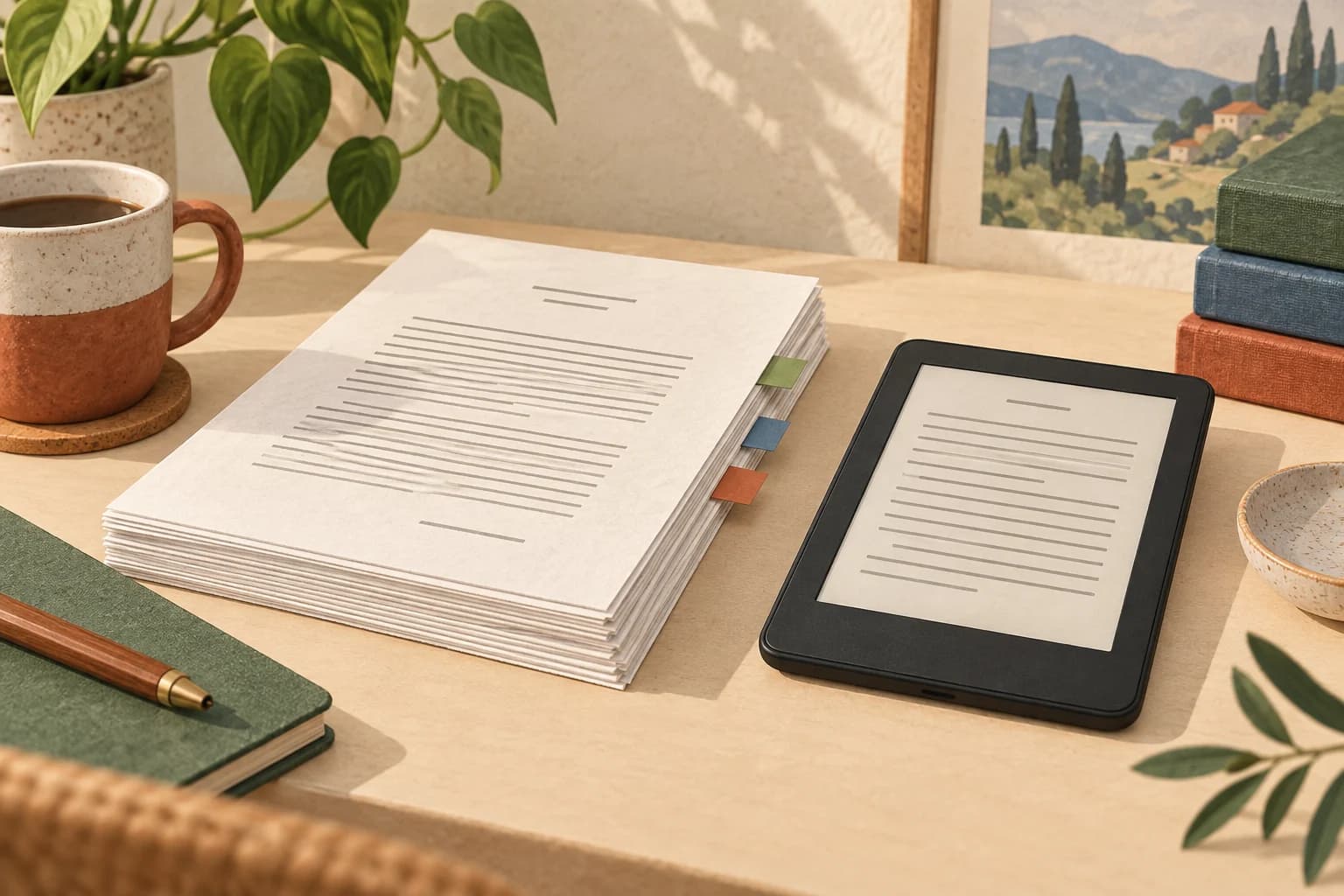
Don't use a PDF as your Kindle ebook. KDP accepts PDFs, but it recommends DOCX, EPUB or KPF, and a converted PDF often loses its formatting. Keep the PDF for direct sales.
Five mistakes that make ebooks look bad
Text inside images. A chart or infographic with small labels turns into a gray smudge on a 6-inch screen. Put the important words in the text, or make the image simple and large.
A cover that only works big. Most shoppers see your cover as a thumbnail. Thin fonts and long subtitles disappear. Test it at stamp size.
A stretched cover. Taking a 1,000-pixel image and blowing it up to 2,560 makes it blurry. Start at full size.
Fixed layout for a text book. Turning a novel or guide into fixed pages makes it unreadable on phones and stops readers from changing the font. Only use fixed layout when the design really can't move.
Using the print PDF as the ebook. A paperback PDF has margins, page numbers and headers built in. On a Kindle, that all gets in the way. Export the ebook separately.
The ebook isn't your print size
If you also publish a paperback, the trim size (5" x 8", 6" x 9" and so on) is a print decision. It sets margins, page count and printing cost on KDP, and it has nothing to do with the ebook. Write once, then export the ebook and the print PDF separately. KDP's paperback guide covers trim sizes and margins.
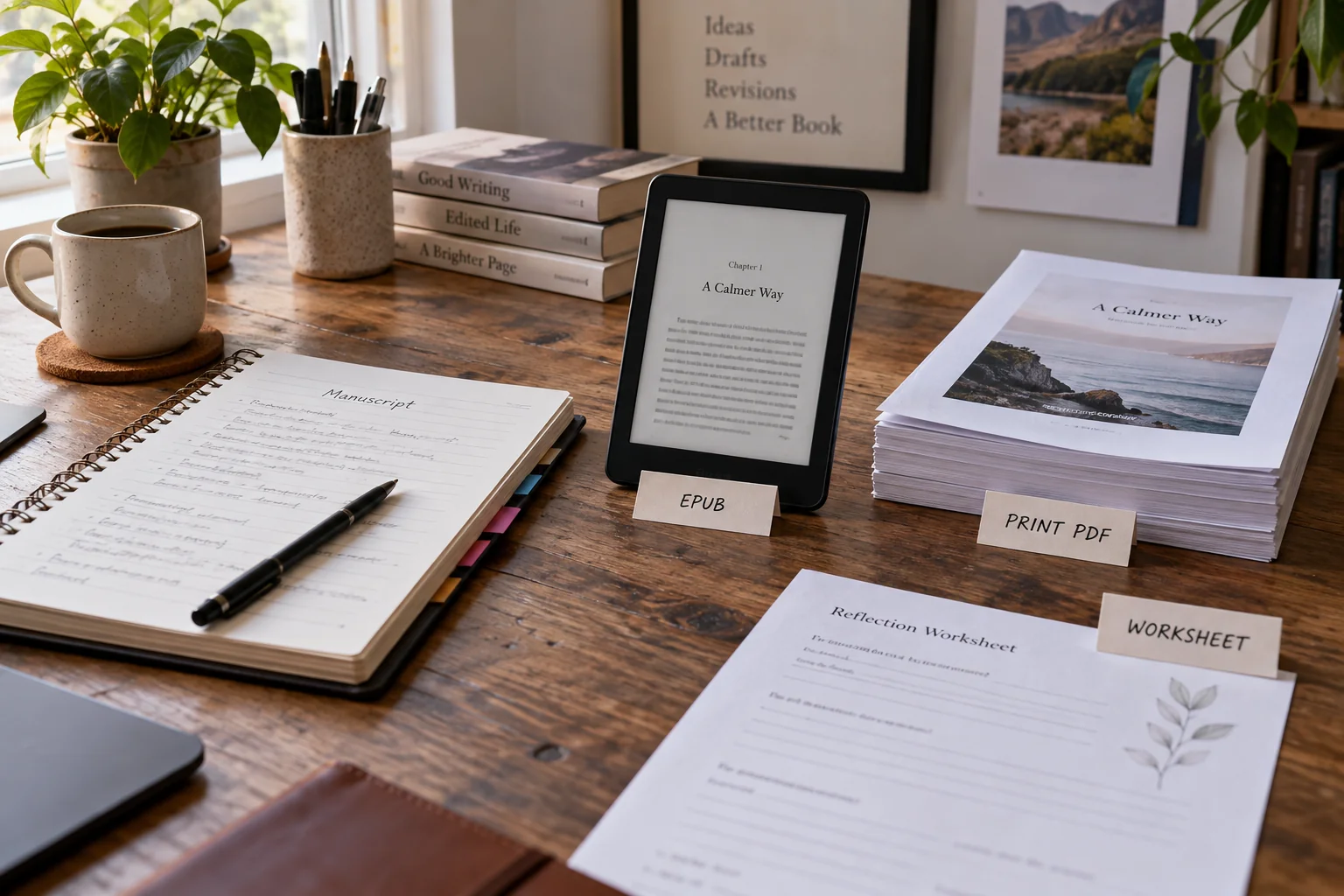
That's how Automateed handles it too: you write the book once, then download an EPUB for Kindle and the other stores, and a formatted PDF (with a choice of templates) for print or direct sales.
Not sure how long your book will be in print? See how many words fit in 100 pages.
FAQ
What page size should I use in Word for an ebook?
It doesn't matter for a reflowable ebook. Leave it on Letter or A4 and focus on headings and clean formatting.
What's the best ebook cover size?
2,560 x 1,600 pixels (height x width) for Kindle, which also works on the other stores.
Is 6" x 9" a good ebook size?
For a PDF, yes. For a Kindle or EPUB ebook, there's no page size to set.
What size should a children's ebook be?
Use a fixed layout that matches your illustrations, usually landscape or square, and keep every page the same size.